On Day 1, you'll receive an email from mission-control@squareup.com in your personal email with a temporary link to set your initial Block password. You won't be able to continue until this email arrives.
2
Open the link on your personal device
Use your personal device (phone or personal computer) to open the link.
3
Create your Okta password
Follow the prompts to create your Okta password.
4
Stop there
Once your password is set, close the page and return to your Block laptop.
Do NOT set up MFA on your personal device
After setting your password, Okta will automatically prompt you to set up a security method (MFA). Do not set up Okta Verify, FastPass, or any other security method on your personal device — just close the page. You will enroll your YubiKey as your security method on your Block laptop during setup.
Grab your YubiKey
Keep your YubiKey handy
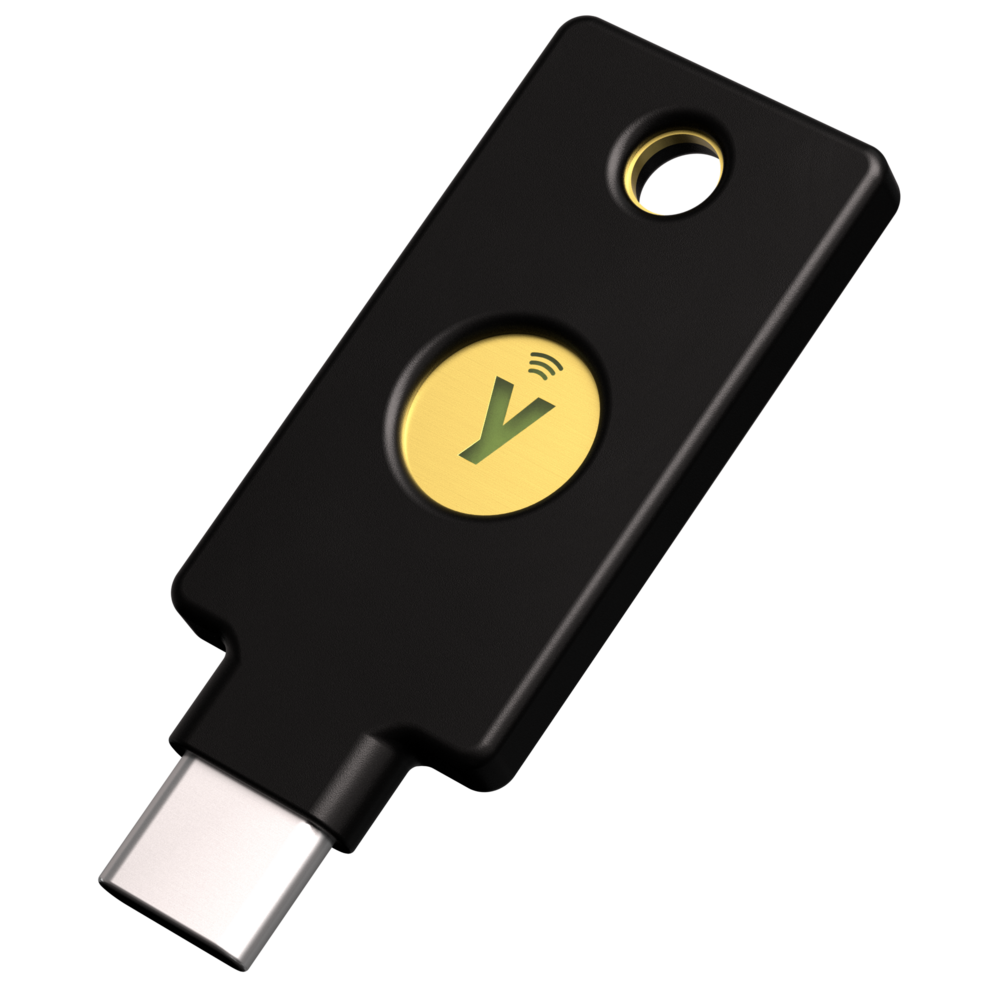
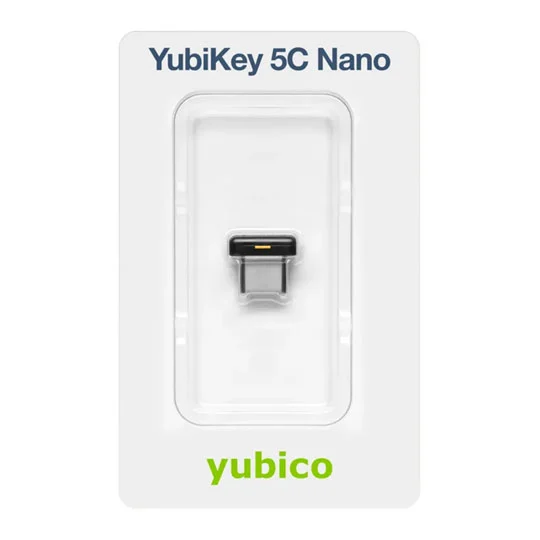
During device setup, you will enroll your YubiKey (a small USB security key) as your phishing-resistant MFA method. It should have been included with your laptop and will be one of the two models below.