Before you begin
Let's get your iPad set up so you can get to work right away. Watch the video in each section, then follow along.
Check your personal email for an email from mission-control@squareup.com — it contains a temporary link to set your initial Block password. Follow the prompts to create your password, then close that window and come back here.
The full Okta Verify setup is covered in the next section of this guide. Continuing it from the email will cause issues with your setup.
Install the Okta Verify app on your personal phone before proceeding.
Set up Okta Verify on your phone
Your first login happens on your personal phone using the Okta Verify app. Follow these steps to add your Block account.
Open Okta Verify on your phone and tap the + icon near the top of the screen to add a new account.
On the "Choose Account Type" screen, select Organization (Work, school, company).
On the "Add Account from Another Device?" screen, tap Skip. On the next screen asking about a QR code, tap No, Sign In Instead — a QR code cannot be used at this step.
Enter login.block.xyz as your organization's sign-in URL, then tap Next.
Enter your Block username (e.g. jsmith), then enter your Okta password when prompted.
If your phone supports biometrics, tap Enable to set up Face ID confirmation. This protects your account when signing in via Okta Verify.
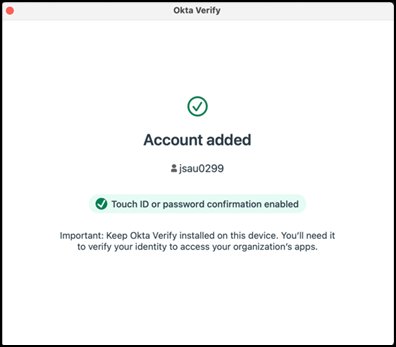
You should see an "Account Added — @block.xyz" confirmation screen like the one below. Keep the app installed — you'll need it to sign in.
Set up your iPad
Power on your new iPad and walk through the initial configuration to enroll it into Block's device management.
Turn on the iPad and select your preferred language, country/region, and appearance (Light or Dark Mode).
When prompted, select Set Up Without Another Device, then connect to a Wi-Fi network.
After connecting to Wi-Fi, the Remote Management screen should appear automatically. Tap Enroll this iPad.
Contact mission-control@squareup.com and include the Asset Tag (6-digit number on the back of the iPad) and the Serial Number.
Enter your Block username and password. When prompted for authentication, select Get a Push Notification, then on your personal phone choose the number that matches the one displayed on the iPad.
The iPad will enroll into device management, install required configurations, and apply security settings and policies. Allow several minutes for this to complete. Once finished, you'll be prompted to set up Touch ID and create an iPad passcode.
Enable Location Services and select your preferred display mode. Then go to Settings → General → Software Update and make sure iPadOS is fully up to date before proceeding.
Add Okta Verify on the iPad
Open the Okta Verify app on the iPad.
Tap Add Account, select Organization, then choose Add Account from Another Device. A QR code will appear on the iPad.
In Okta Verify on your phone, tap the > arrow next to your login.block.xyz account, scroll down, and select Add Account to Another Device. A QR code appears on your phone — scan it with the iPad.
Set up Cloudflare One (VPN)
Open the Cloudflare One app on the iPad.
Cloudflare One may take some time to appear. Do not install it manually via Self-Service. The same applies to Slack EMM.
Follow the prompts to install the VPN profile and tap Allow when prompted. You may be asked for your iPad passcode. Once completed, the VPN connects automatically.
Gmail and applications
Open the Gmail app, select Google, tap Continue, enter your Block email address (e.g. johndoe@block.xyz), and complete Okta verification when prompted.
Use the Self-Service app to download approved applications and install updates.
Ask your lead.
Your Block iPad is fully configured. You now have access to Block email, VPN connectivity, and approved applications. Setting up a laptop as well? Head to Select your device.
iPad FAQ
Common questions about your Block iPad setup and day-to-day use.
Quick start
What do I need before I start setting up my Block iPad?
Set your initial Block password, and make sure Okta Verify is already set up on another device, either personal or Block-issued.
How do I start setting up the iPad?
Follow the steps on this page, starting from Before you begin at the top.
Common questions
Can I use Google Chrome on a Block-issued iPad?
No. Chrome isn’t available on Block-issued iPads because it doesn’t support the device certificates we require on iPadOS. Safari is the supported browser.
Can I open go links on a Block-issued iPad?
Not directly. Go links don’t work on iPads the way they do on laptops and Block-issued iPhones, so type the full URL into Safari instead.
What can I access from a Block-issued iPad?
Once setup is complete you can use Block email, the VPN and any approved apps.
My VPN app or Slack EMM is missing during setup. What should I do?
Give it a few minutes. Cloudflare One and Slack EMM install automatically during setup but can take a while to appear — do not install them manually from Self-Service.
I forgot my iPad passcode. Can IT unlock it?
Sometimes. IT can send a passcode wipe command, but only if the iPad is online.
- If the iPad is connected to Wi-Fi or cellular data, email mission-control@squareup.com with the asset tag and serial number.
- If it is not connected, put it into recovery mode and reset it using Apple’s steps: support.apple.com/en-gb/119858.
- After the reset, re-enroll by following this page again from the top.
I cannot access Block apps after setup. What should I check first?
Check that enrollment finished, Cloudflare One is connected, Okta Verify is set up on the iPad, and iPadOS is up to date.
Apps and access
How do I download apps on a Block-issued iPad?
Use the Self-Service app to download approved apps and install updates.
What if the app I need is not in Self-Service?
Ask your lead.
Can I use the App Store?
No. The App Store is blocked on Block-issued iPads. Use the Self-Service app instead.
Which apps are usually needed on day one?
On day one you’ll need Okta Verify, Cloudflare One and Gmail. Use Self-Service to install any other approved apps and to get updates.
How do I access my Block email on the iPad?
Open the Gmail app.
How do I get VPN access?
Open Cloudflare One and install the VPN profile. If the app hasn’t appeared yet, give it a few minutes — do not install it manually from Self-Service.
Get help from the IT team in real time; the meeting link is in your welcome email. Ireland & UK: 9:00–10:00 AM GMT · US East: 10:00 AM–12:00 PM ET · US West: 10:00 AM–12:00 PM PT.