Connect to Cloudflare One (WARP)
Open Cloudflare One
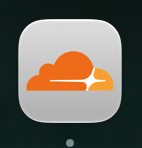
Click the Cloudflare cloud icon near the clock in the top-right corner of your screen. The app was previously called Cloudflare WARP — you may see either name.
Authenticate with Okta
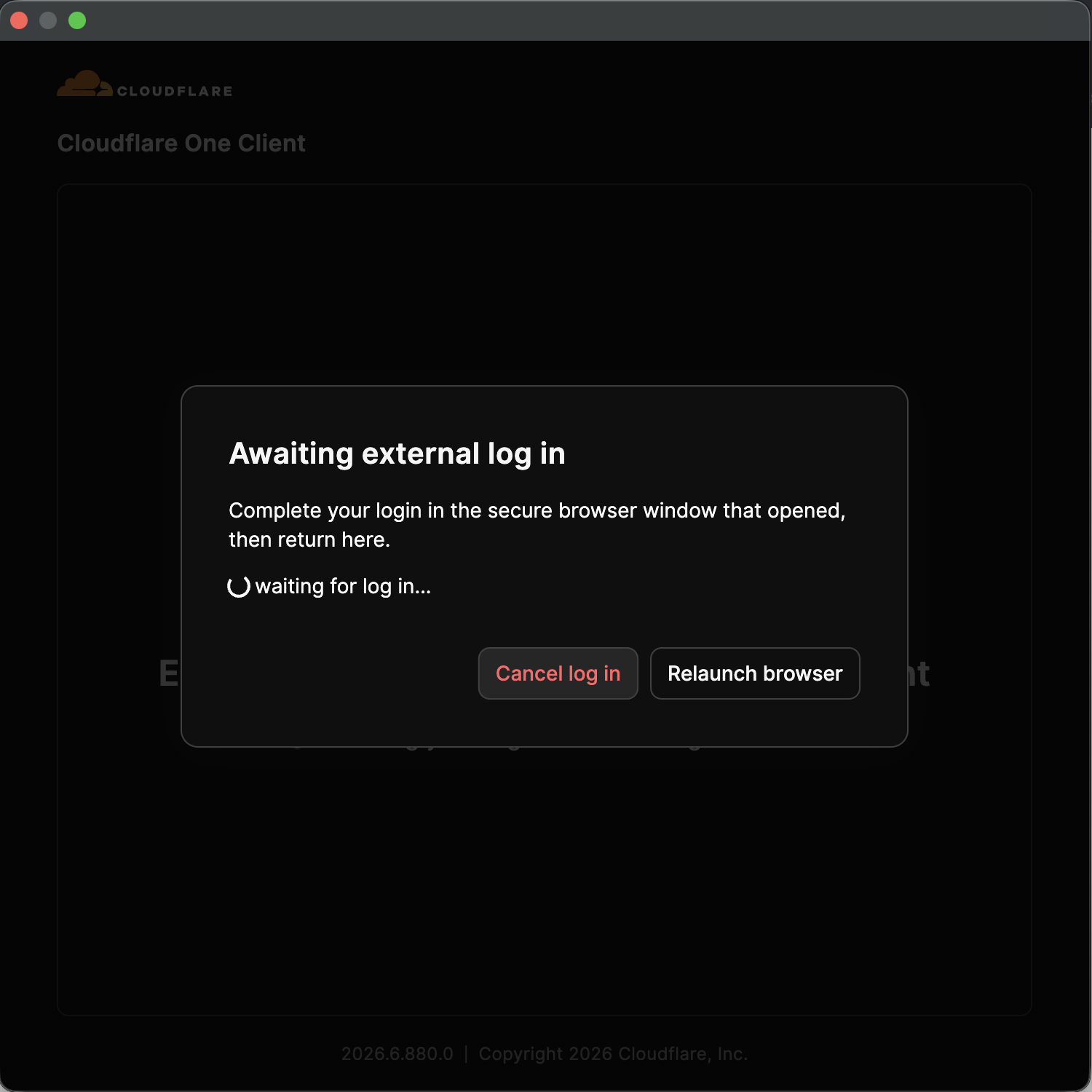
A secure browser window will open for you to sign in via Okta. While you do, the app shows Awaiting external log in — complete the login in the browser, then return to the app. After the first sign-in, you'll be asked to re-authenticate once daily.
Cloudflare One stuck or not responding?
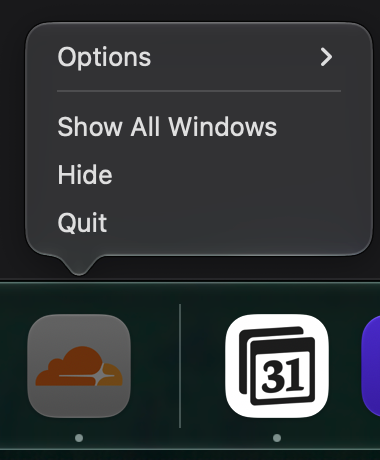
Sometimes the app hangs or nothing happens when you open it. To fix this, right-click the Cloudflare One icon in the Dock, choose Quit, then click the same Dock icon to reopen the app.
Sometimes the app hangs or nothing happens when you open it. To fix this, right-click the Cloudflare One icon in the Dock, choose Quit, then click the same Dock icon to reopen the app.
You're connected!
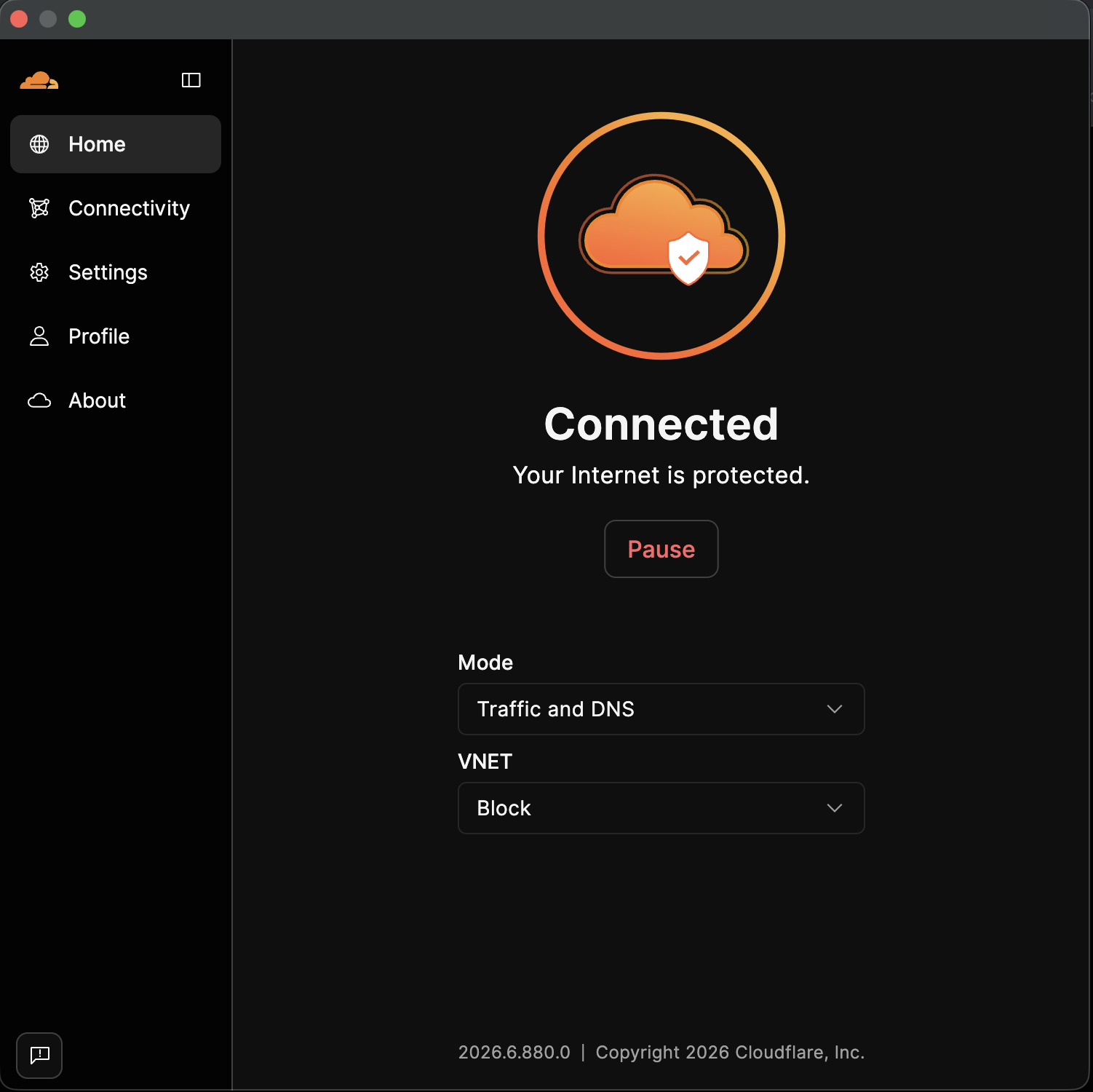
The Home screen will show Connected — Your Internet is protected. Cloudflare One runs continuously in the background — no need to reconnect manually.
Need help?
Contact mission-control@squareup.com