Chrome Setup
Set Chrome as your default browser and sign in with your Block account.
Set Chrome as default browser
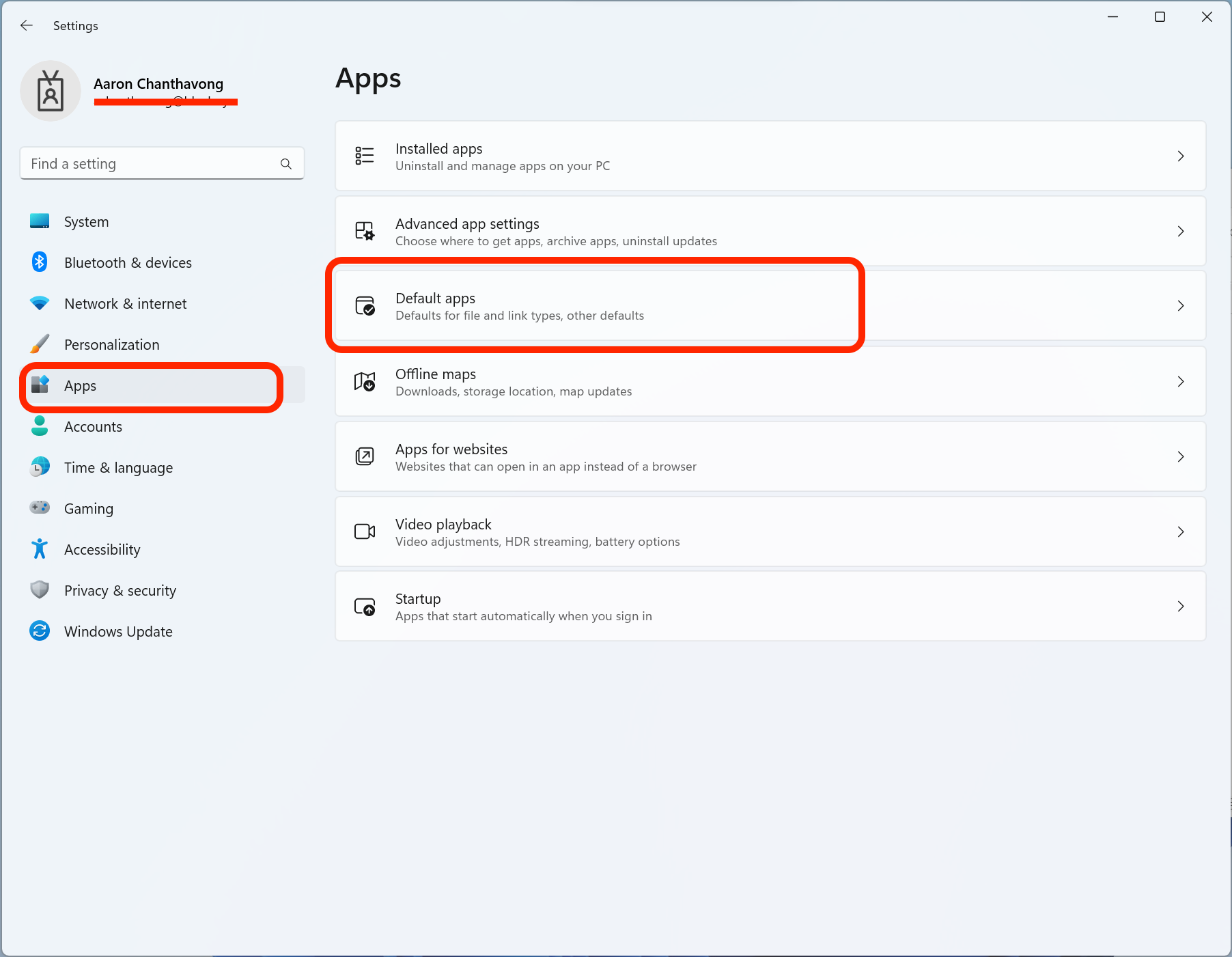
Open Settings, click Apps in the left sidebar, then select Default Apps.
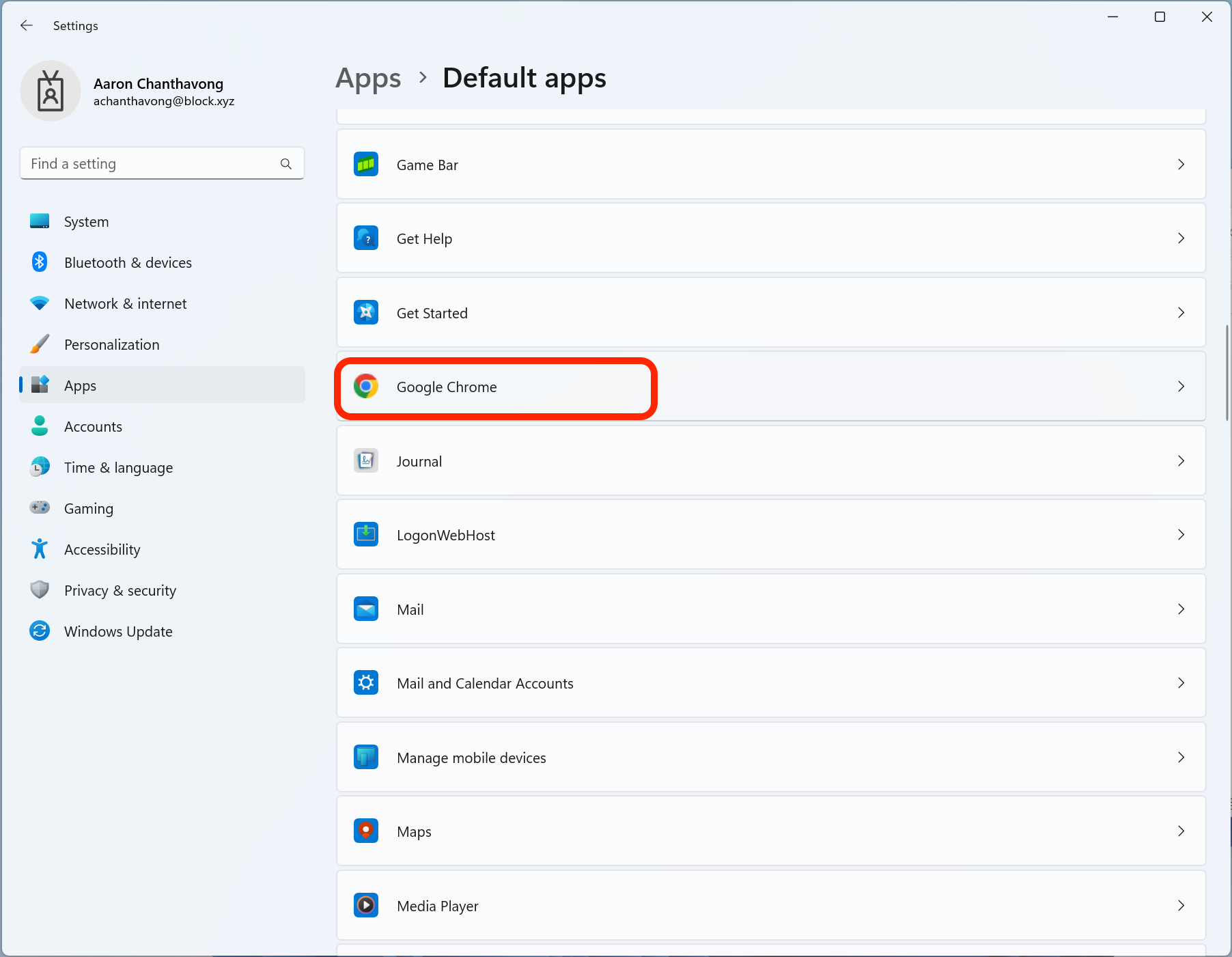
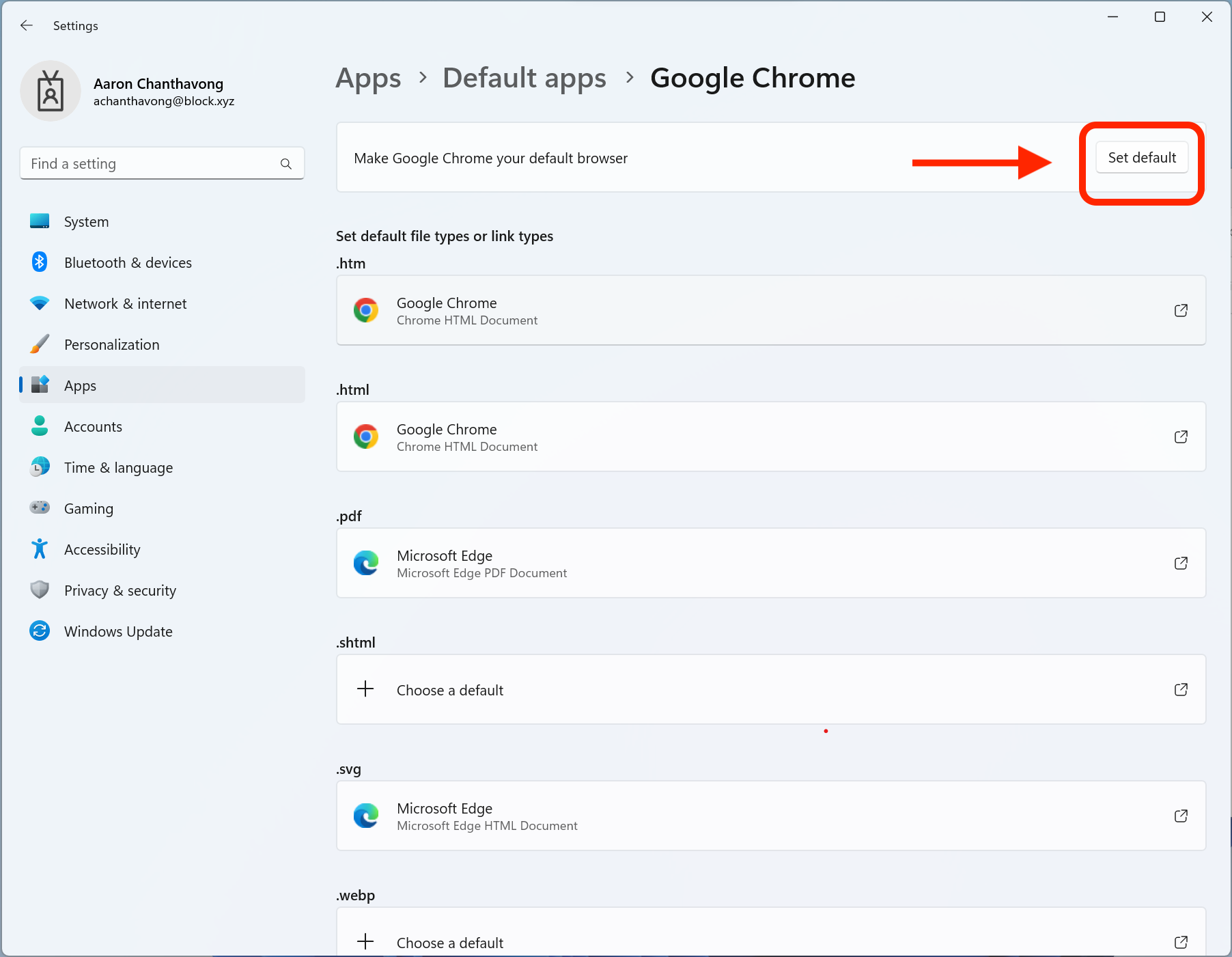
Search for Google Chrome, select it, and click Set default.
Sign into Chrome
Open Google Chrome from the desktop. If the icon isn't there yet, wait a minute or two for Windows Updates to finish installing it.
Click Sign In and enter your Block email address. An Okta login page will appear — click Sign in with Okta FastPass.
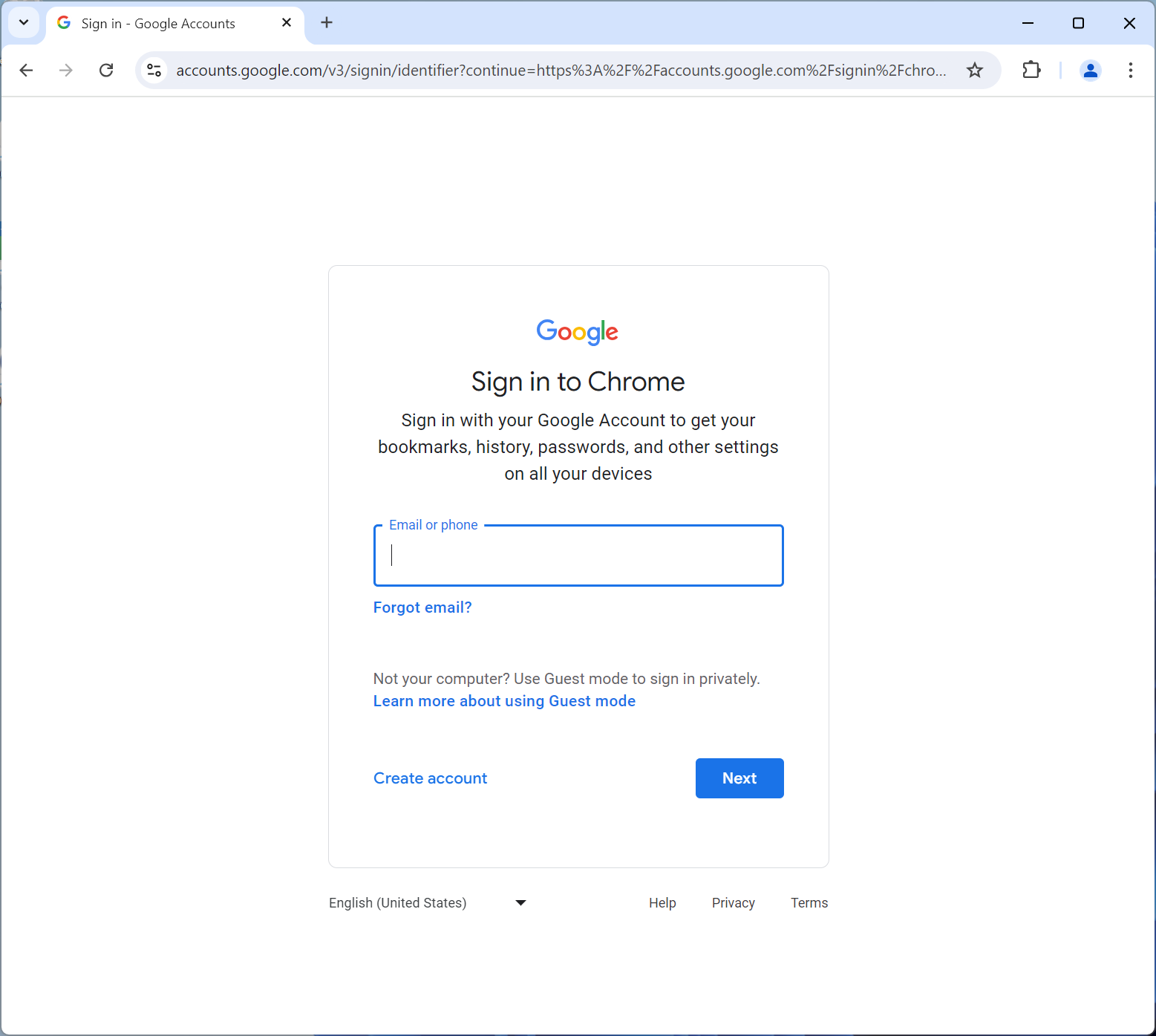
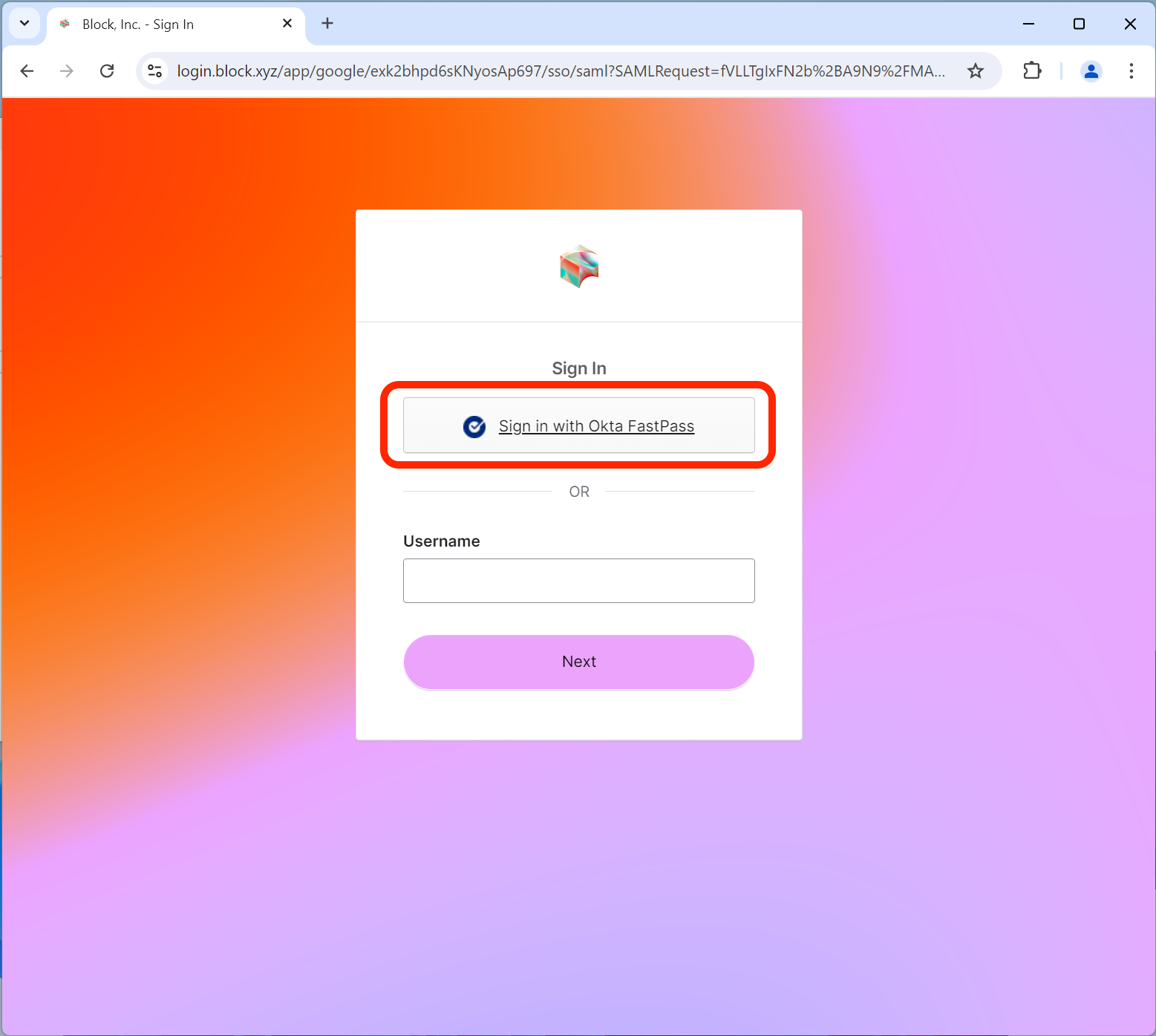
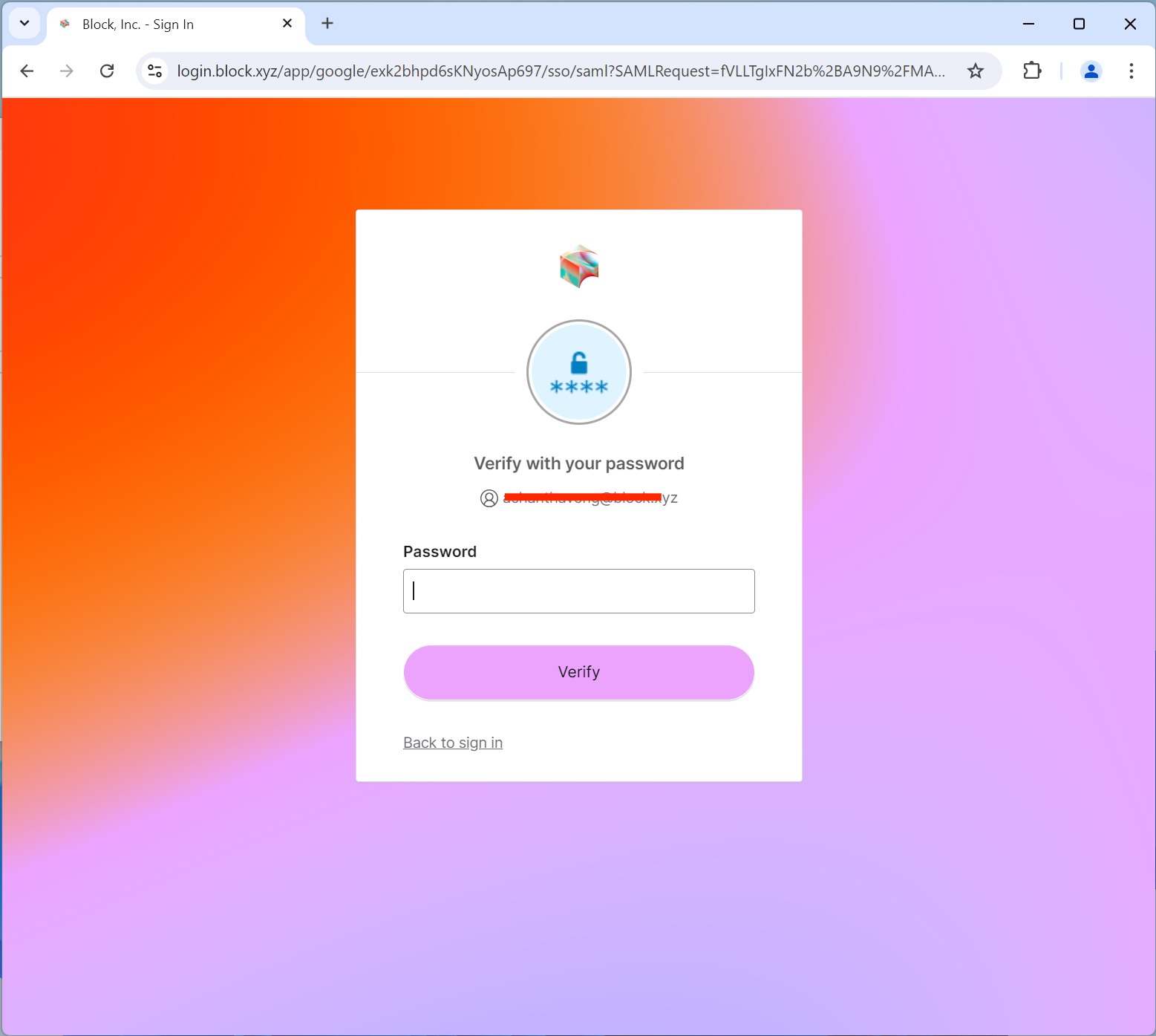
Okta FastPass will verify your identity using biometrics. Once authenticated, the Okta login screen will reload — enter your password to continue.
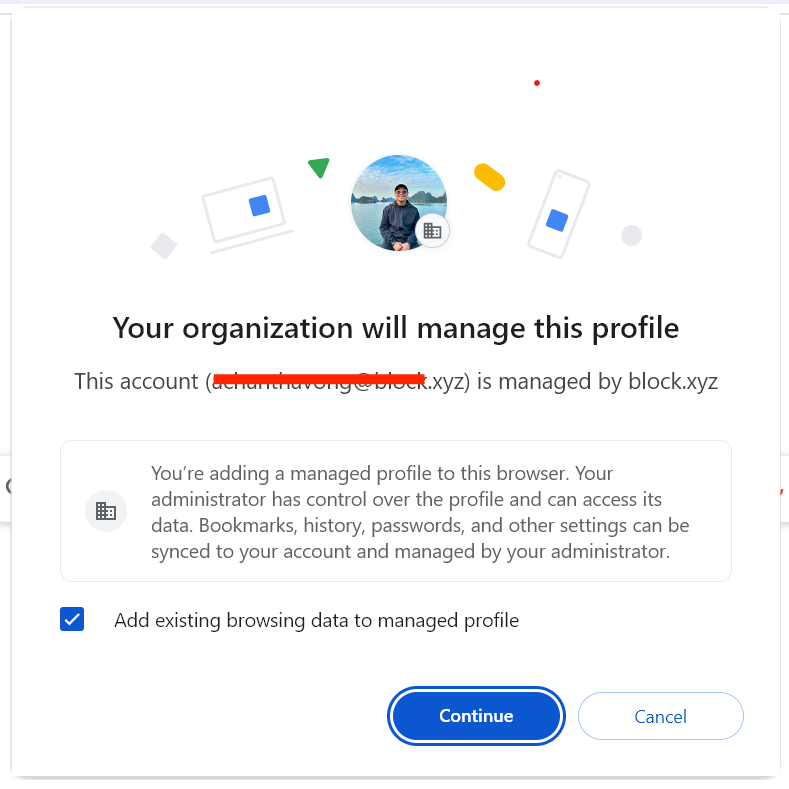
You'll see a page that says "Your organization will manage this profile." Leave the box checked and click Continue.
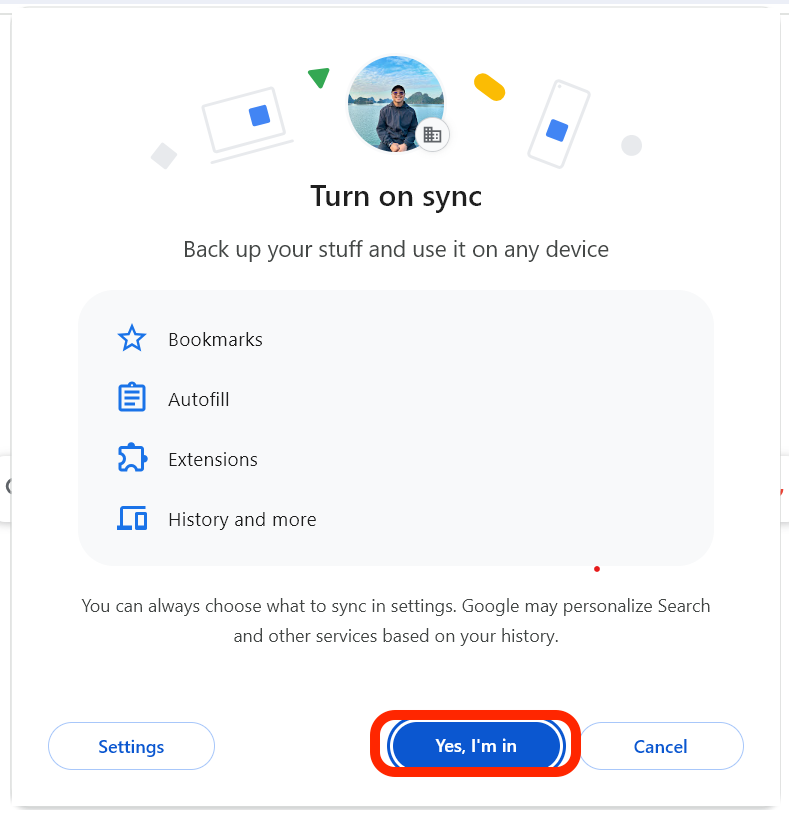
When prompted to "Turn on Sync," click Yes, I'm in. This downloads the required Chrome extensions for go/links and other internal tools.
You should see your profile icon or picture in the top-right corner of Chrome.
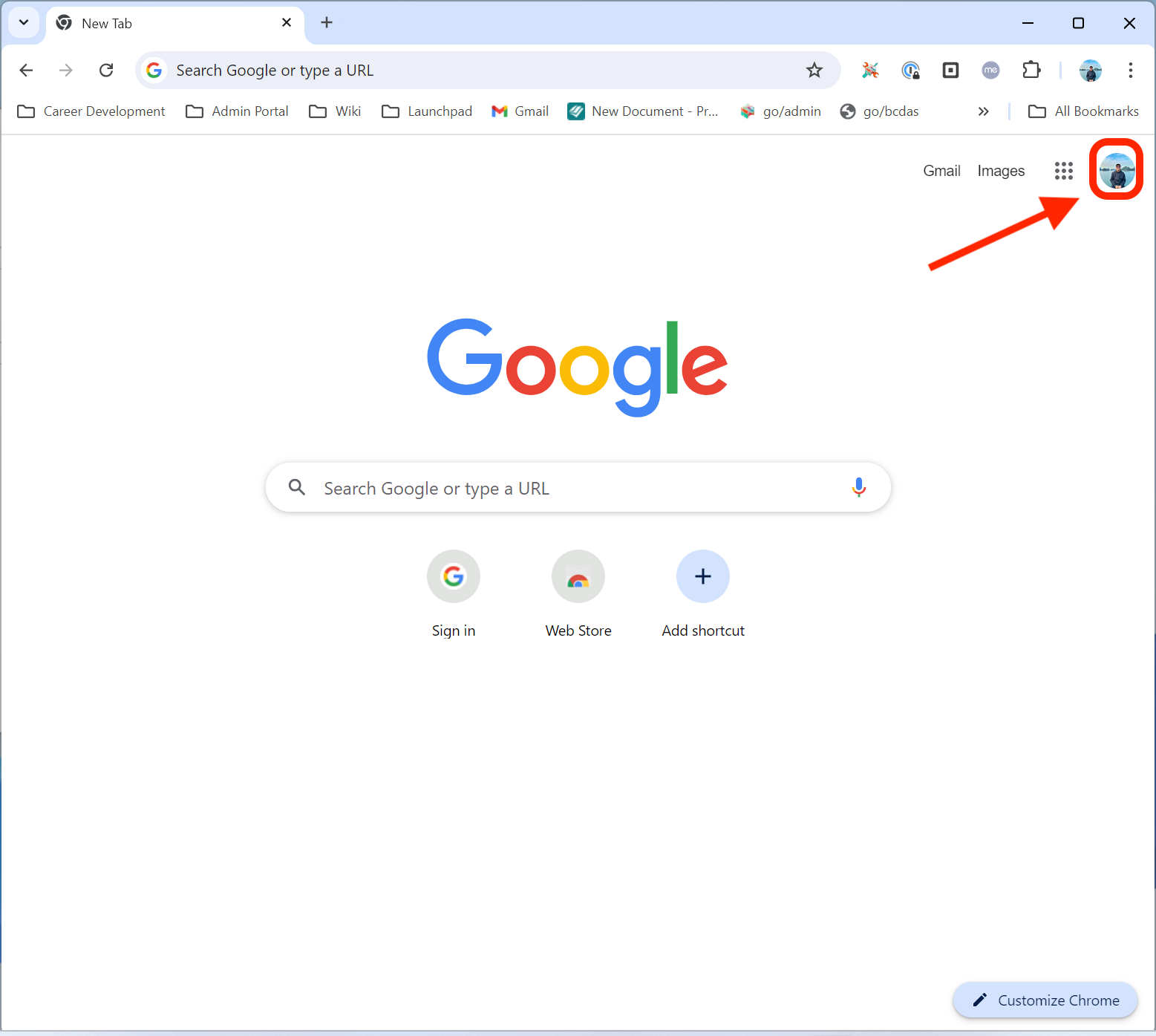
You're signed in and synced with your Block account.