Druva
Activate Druva to automatically back up your computer to the cloud.
Activate backup
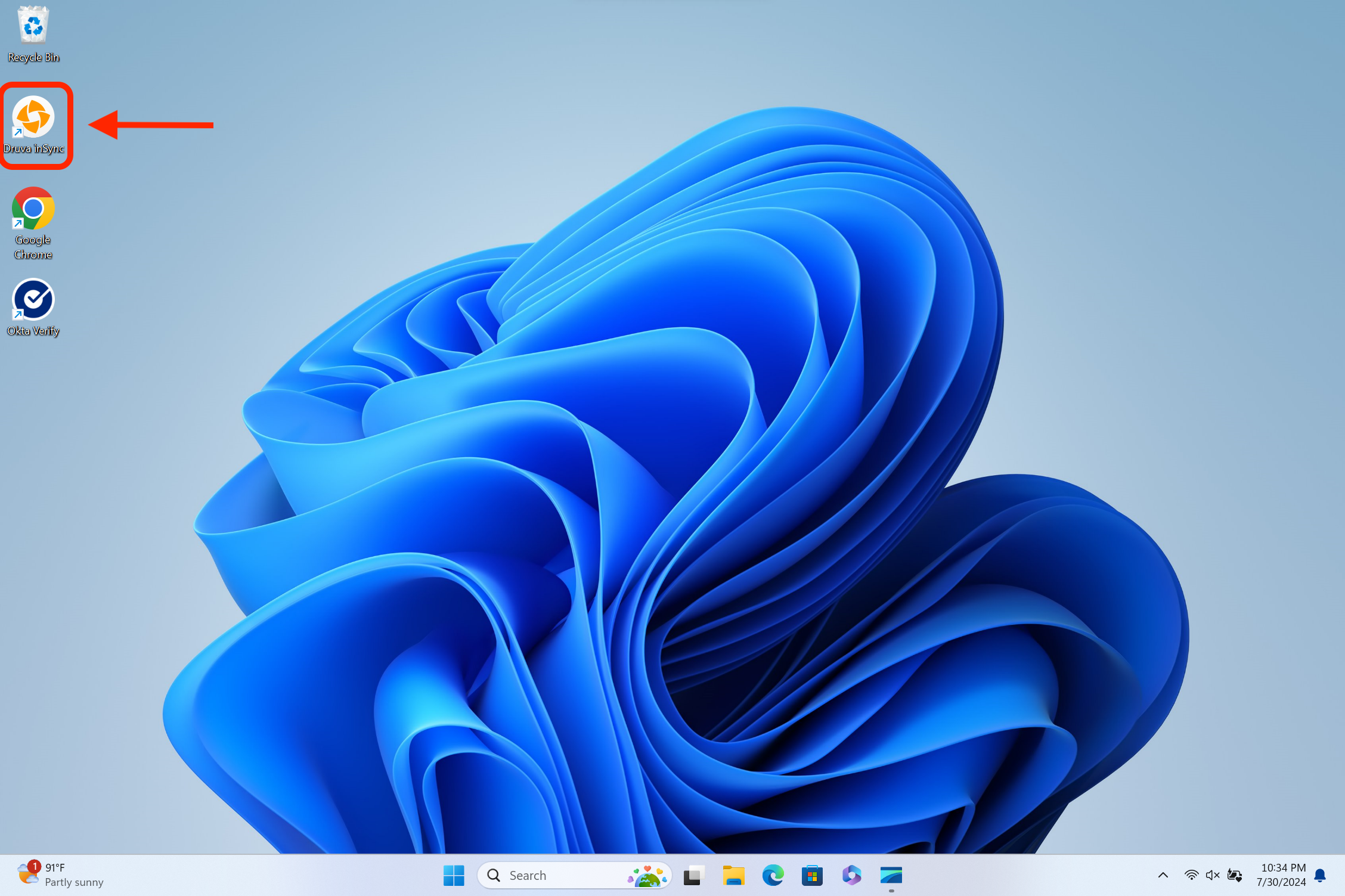
Open Druva inSync
Double-click the Druva inSync icon on your desktop.
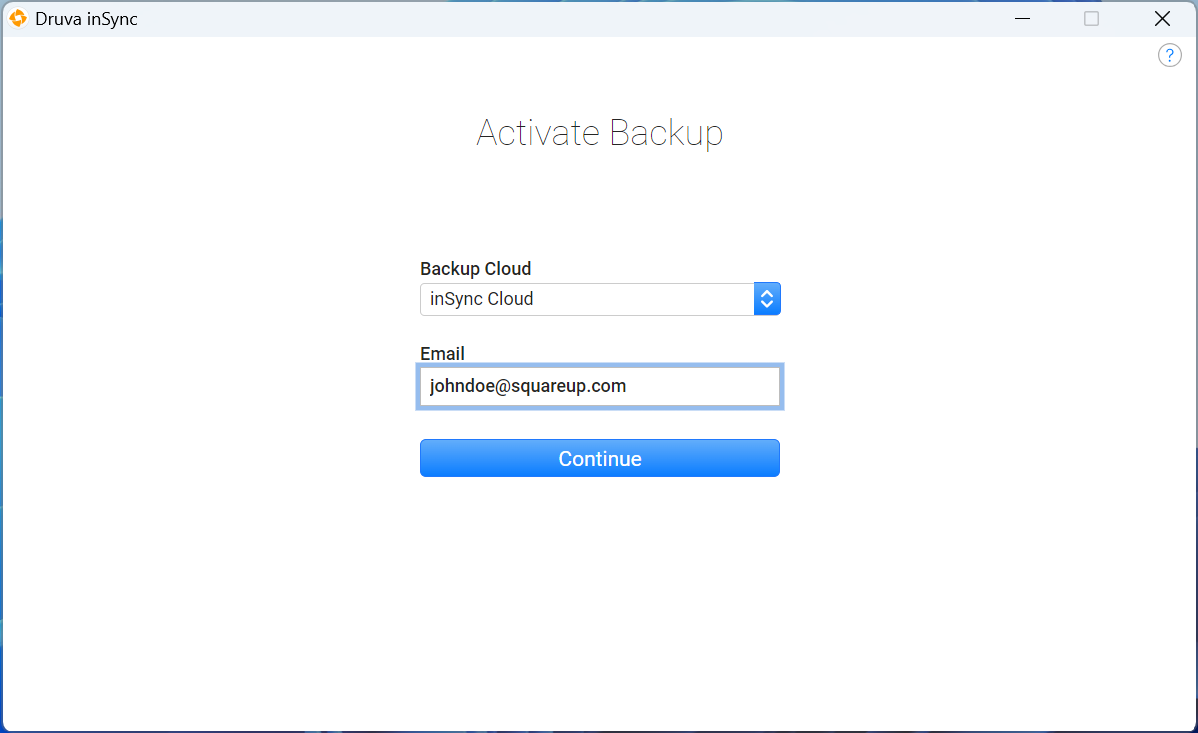
Enter your username
Type your username ending in @squareup.com and click Continue.
Must use @squareup.com
Druva will not work with @block.xyz or @tidal.com. Use your @squareup.com email (e.g. jsmith@squareup.com).
Druva will not work with @block.xyz or @tidal.com. Use your @squareup.com email (e.g. jsmith@squareup.com).
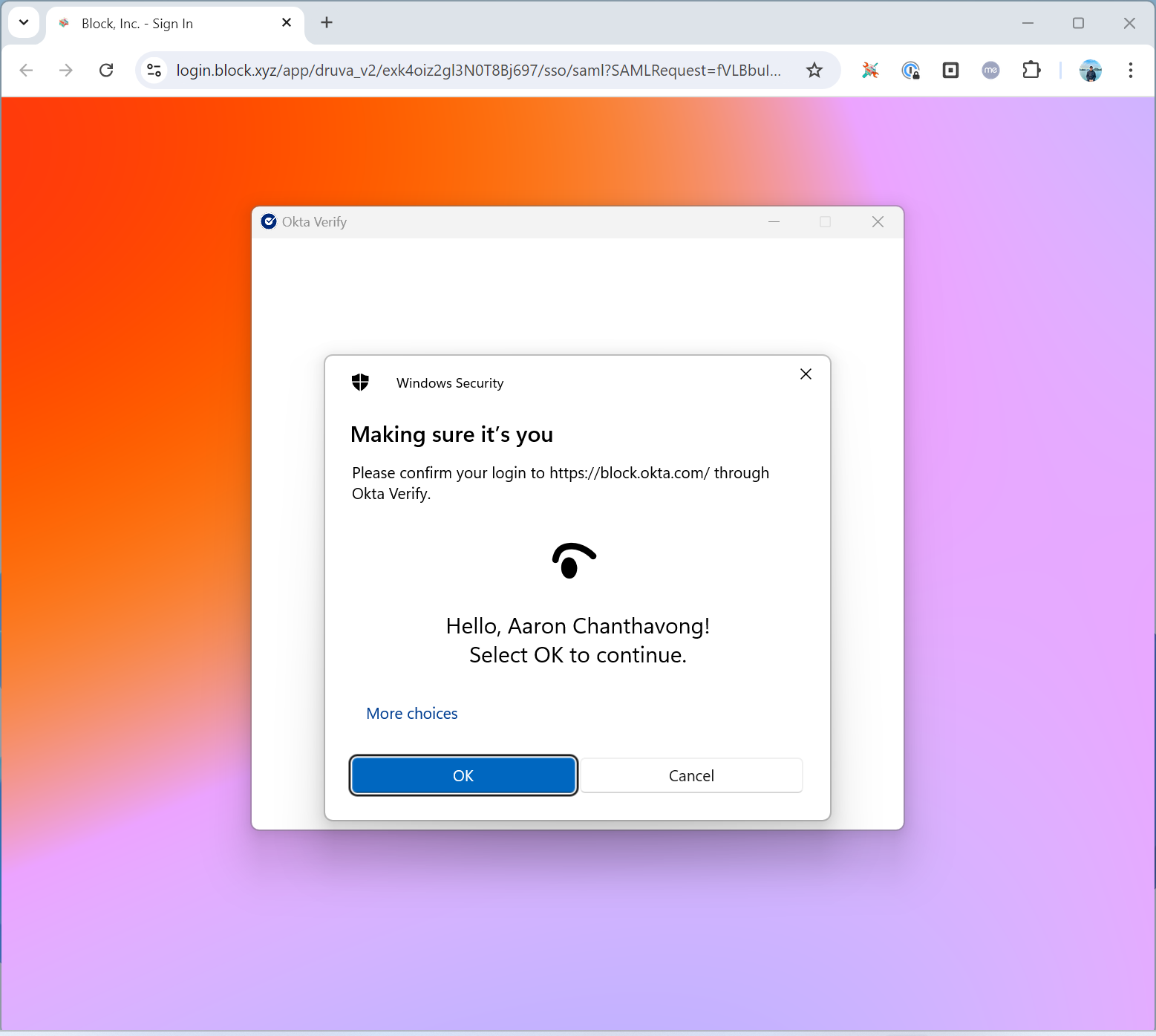
Authenticate with your PIN
Chrome and Okta will open, and a Windows Security prompt will appear. Enter the PIN you set up earlier to authenticate.
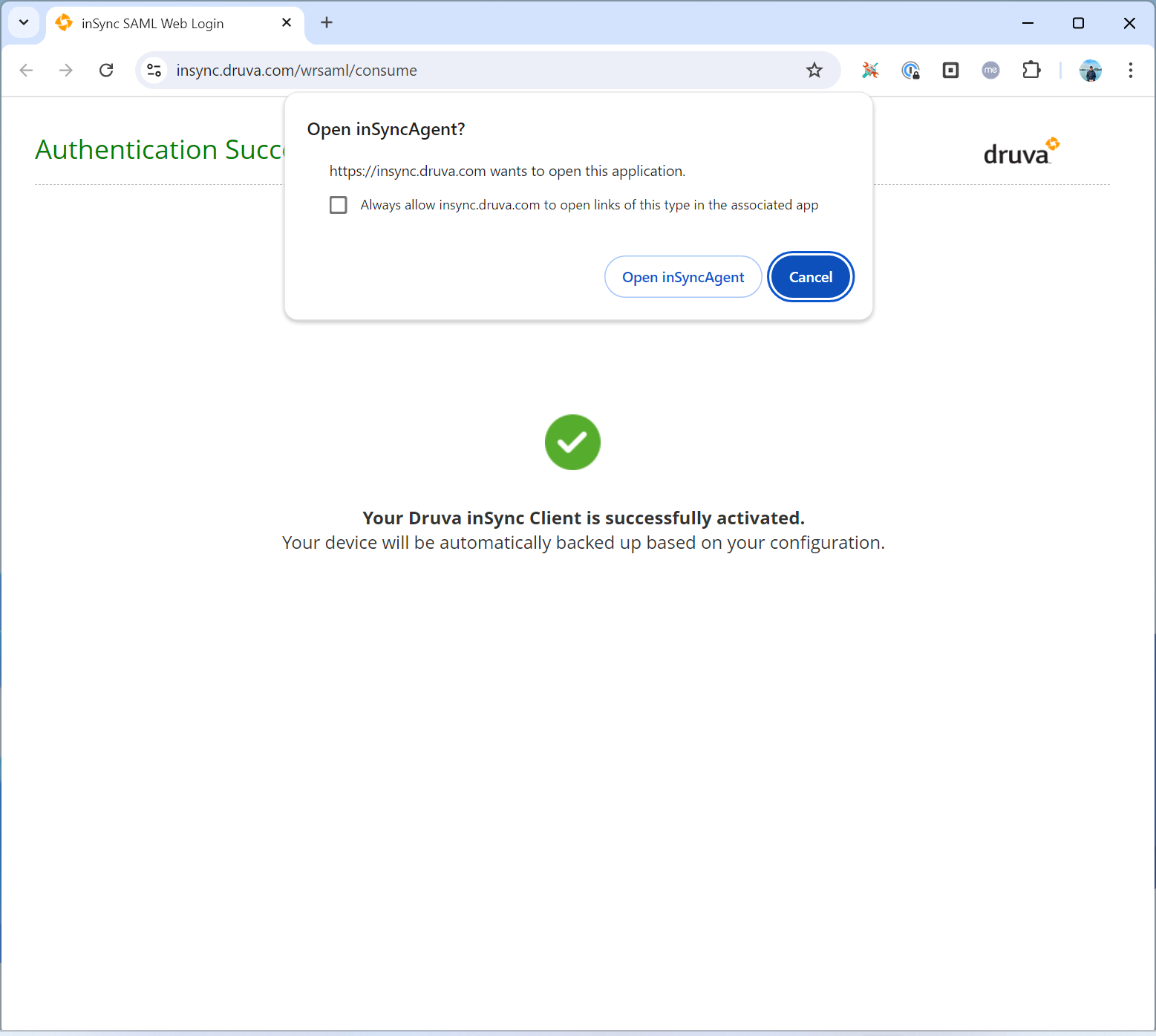
Open InSync
When the "Open InSync?" pop-up appears, click Open InSyncAgent.
Add as new device
The Druva window will return. Click Add as New Device. Druva will begin backing up your data.
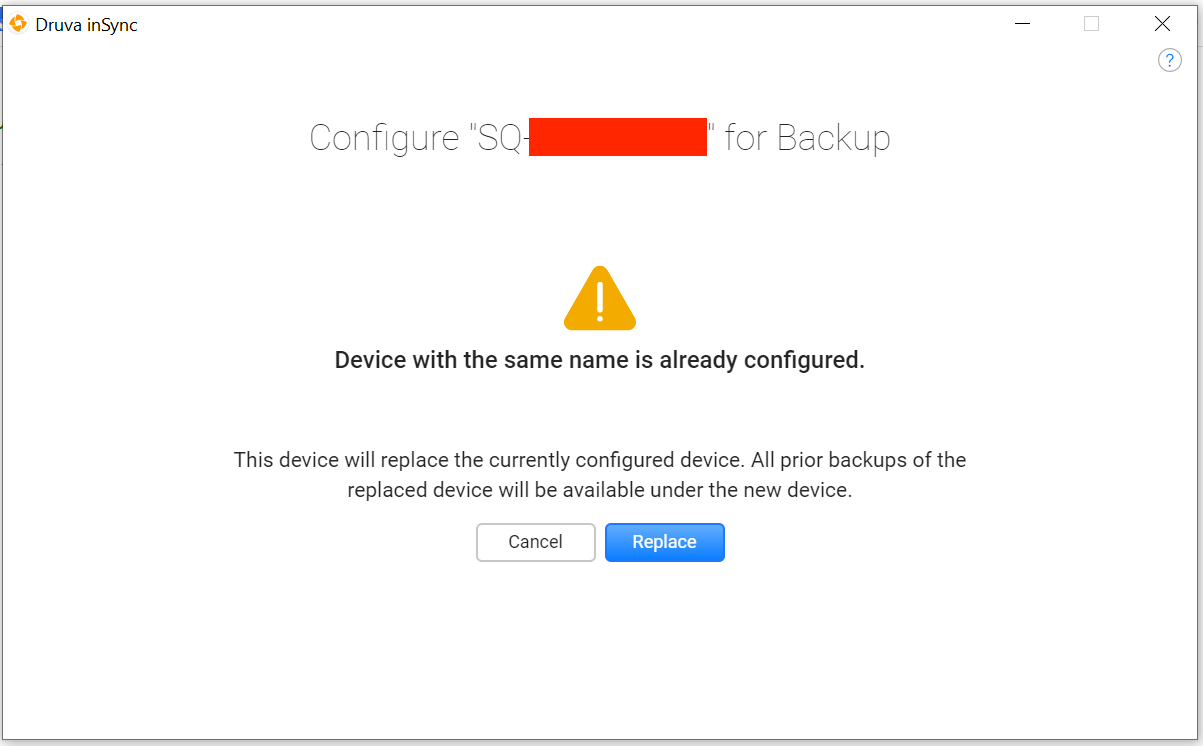
Replacing an old Block laptop?
Still set up as a new device — restoring a full backup can bring over unwanted files. If you need specific files from your old laptop, you can select them individually through the Druva panel later.
Still set up as a new device — restoring a full backup can bring over unwanted files. If you need specific files from your old laptop, you can select them individually through the Druva panel later.
Backup activated!
Druva will back up your computer automatically in the background.
Need help?
Contact mission-control@squareup.com