Okta FastPass
Set up Okta FastPass for quick, secure, phishing-resistant sign-in.
Set up Okta FastPass
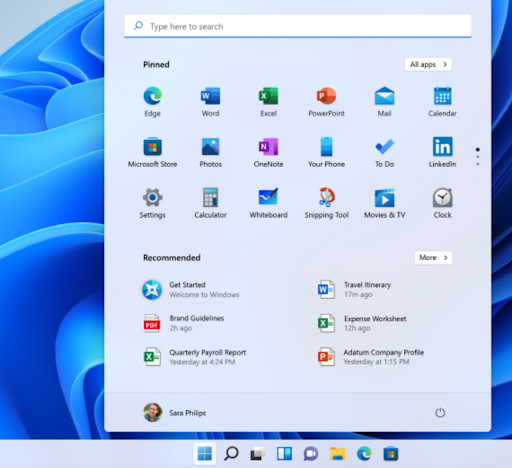
Click the Start menu, search for Okta Verify, and open the app.
Click Get started to add your account using your Okta credentials.
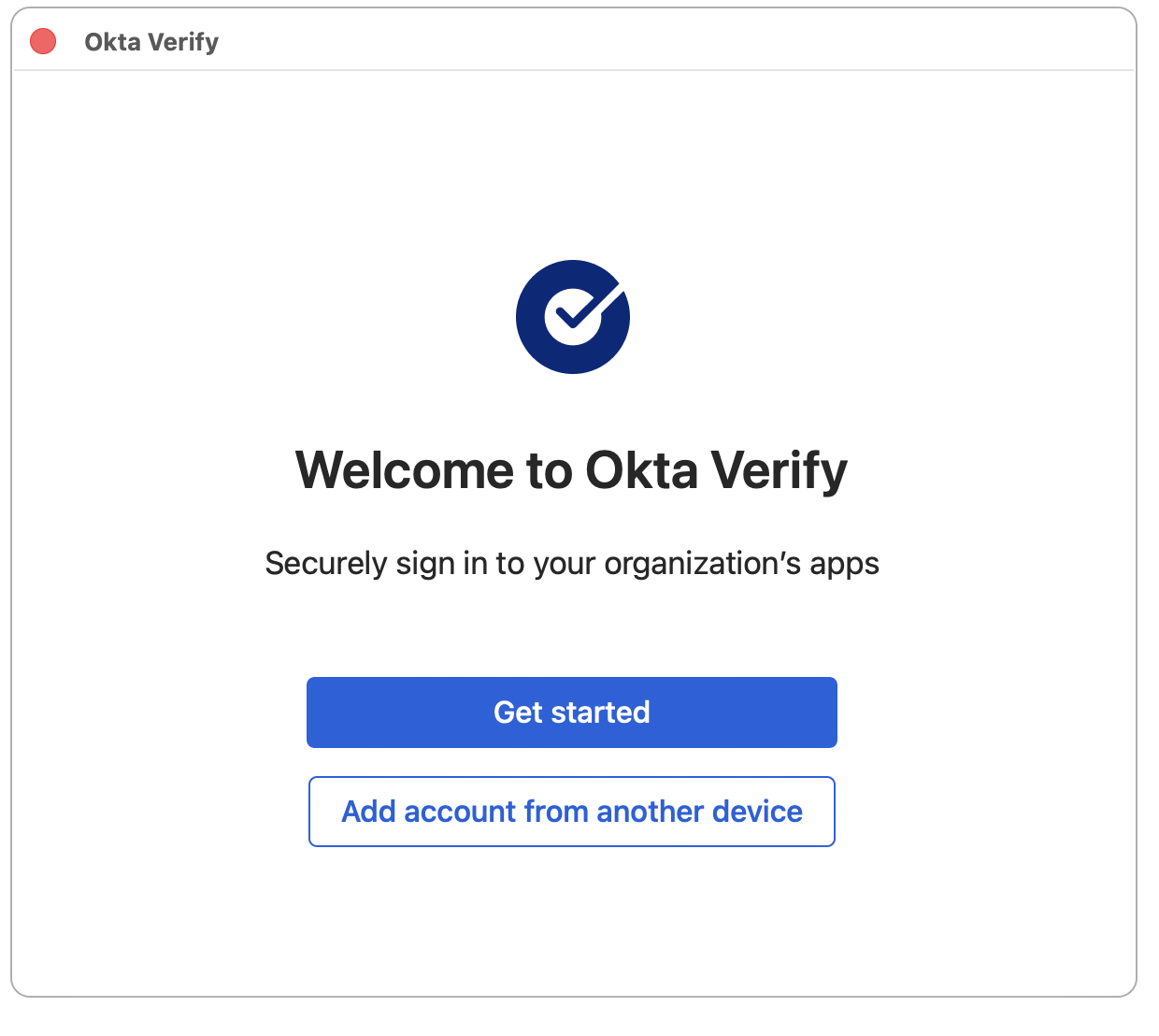
Placeholder screenshot — Okta Verify's welcome screen looks the same on Windows.
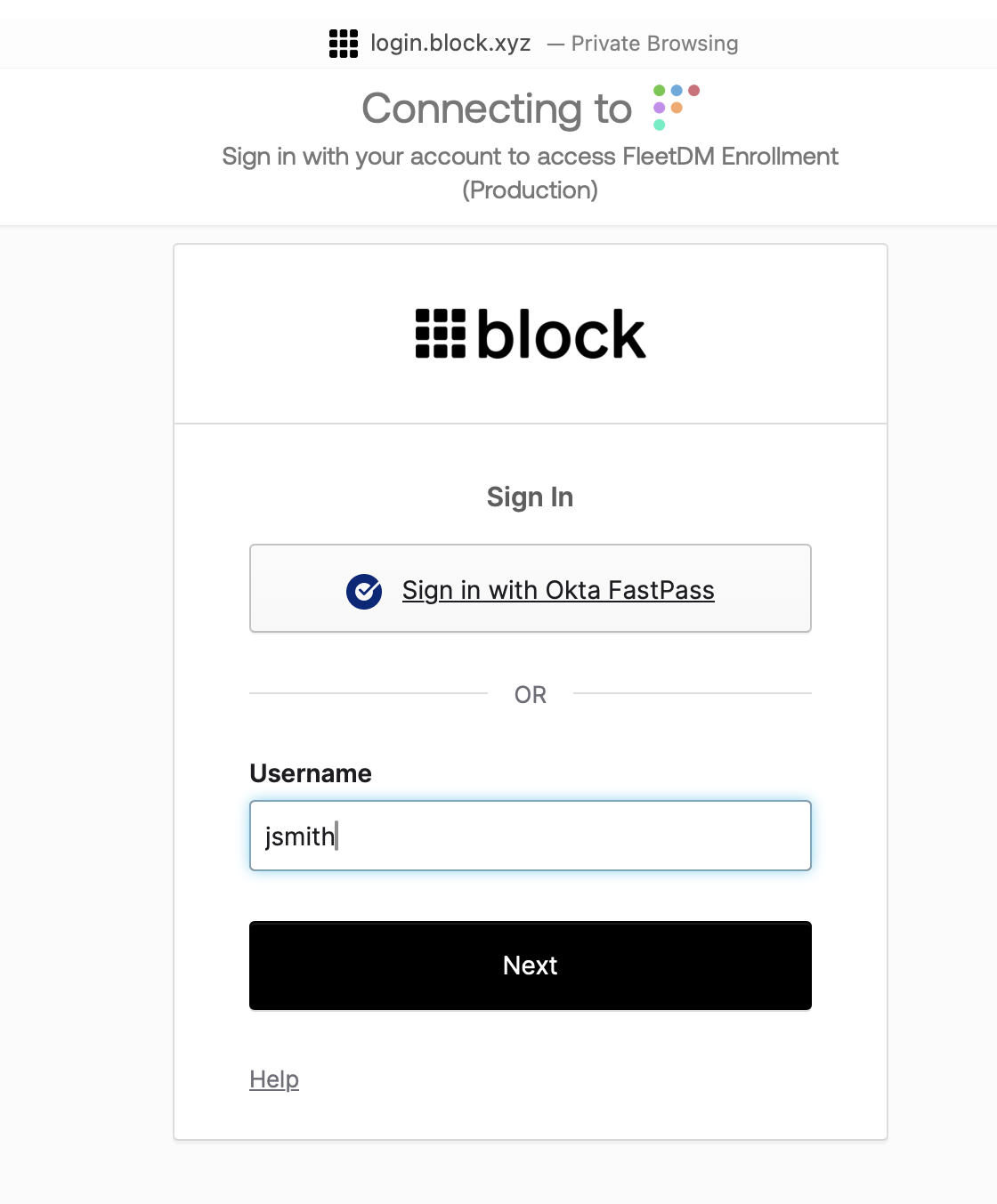
Enter login.block.xyz as your organization's sign-in URL, then click Next.
Enter your username and password, then click Sign In.
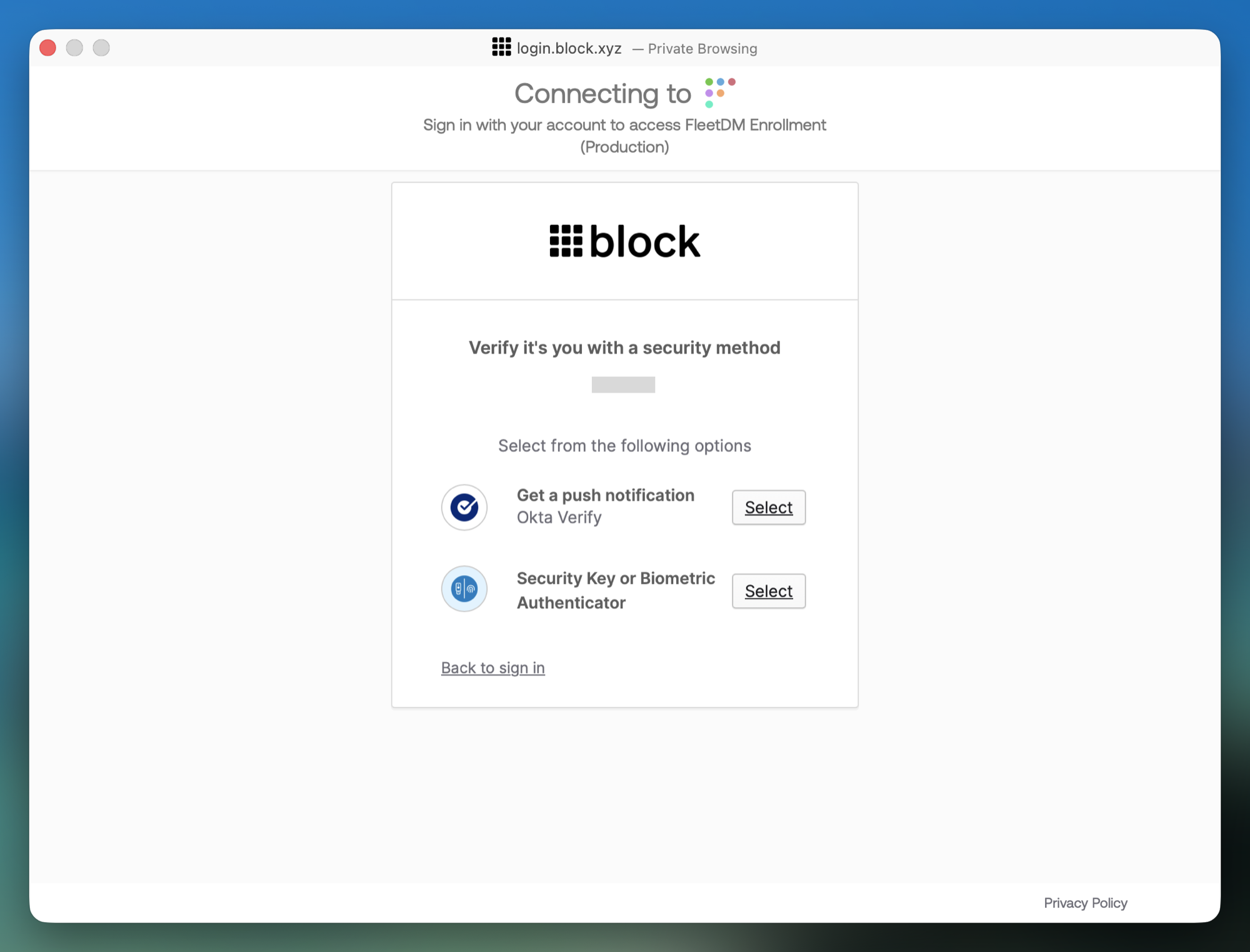
When asked to verify it's you, choose Security Key or Biometric Authenticator and click Select.
When prompted for additional verification, insert your YubiKey and tap the metal contact to authenticate.
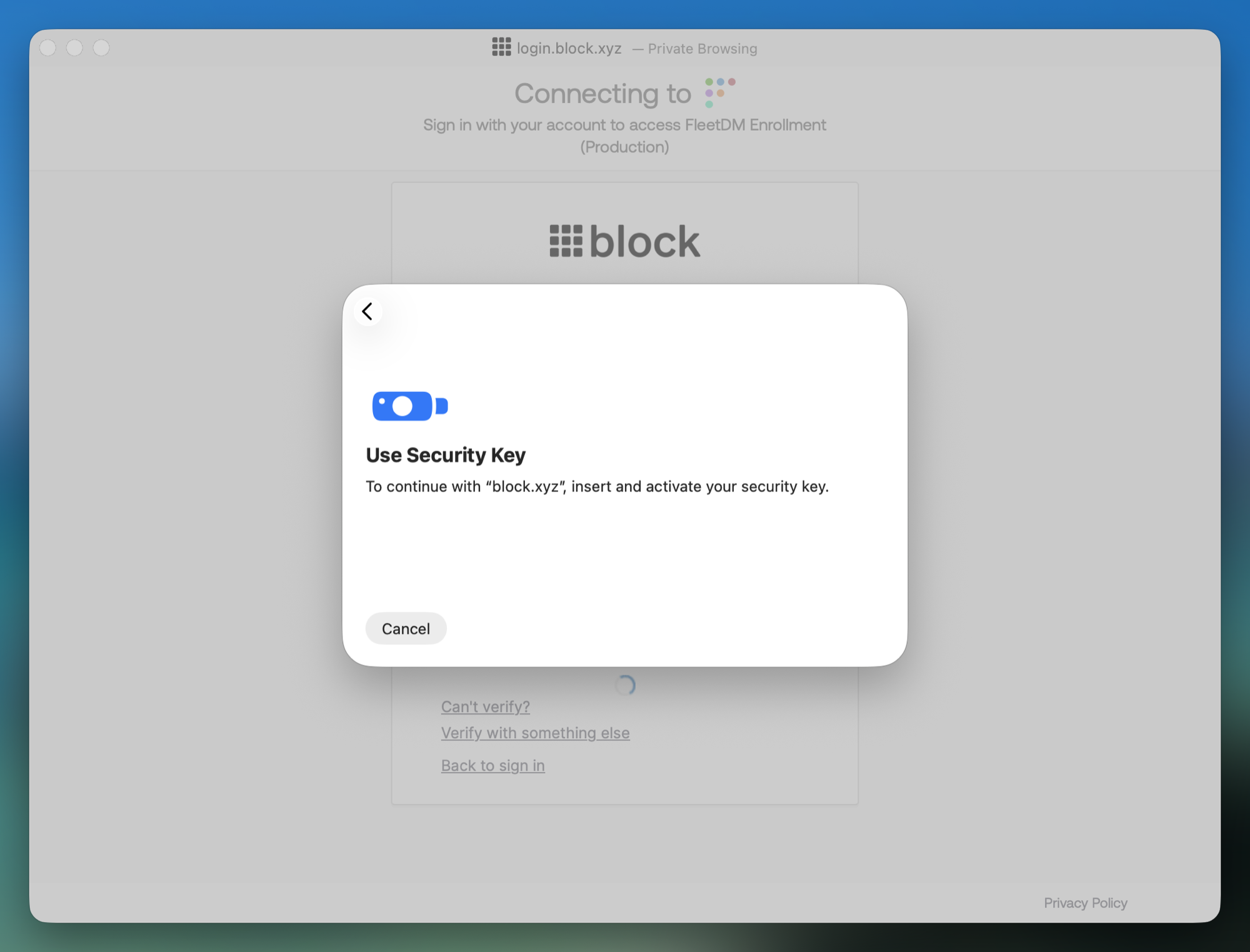
If prompted, verify your identity using Windows Hello (fingerprint, facial recognition, or your PIN).
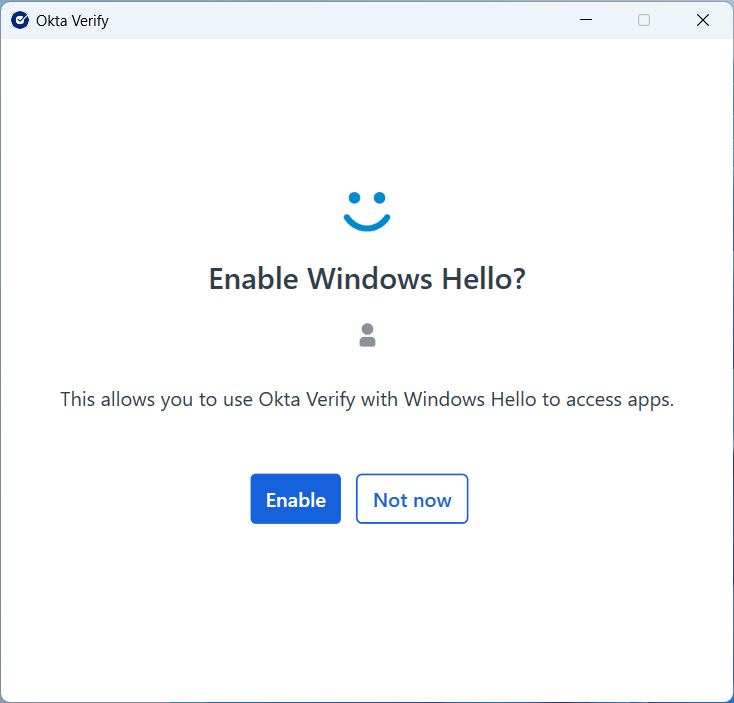
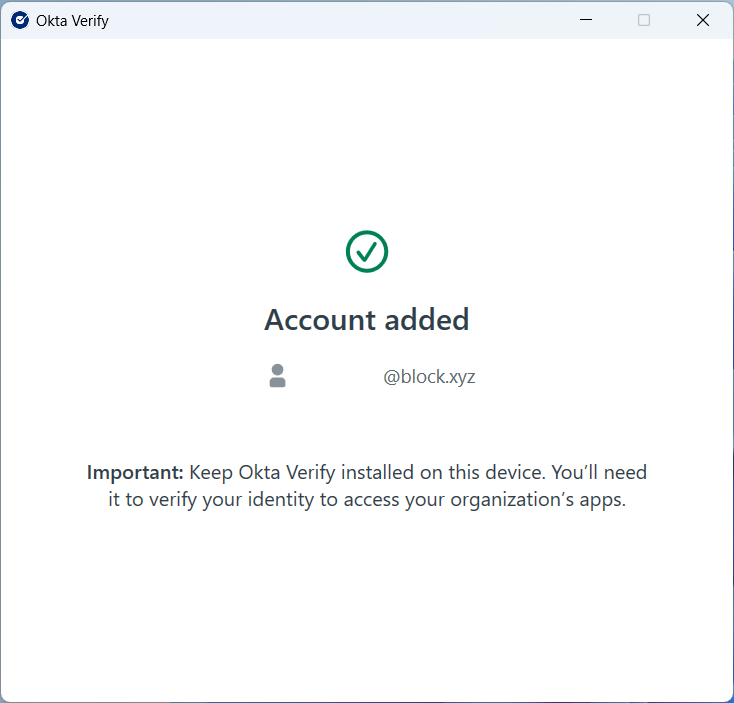
Windows Hello biometrics (fingerprint or facial recognition) are preferred for Okta FastPass. If you don't enable biometrics, you'll be prompted for your password each time you use FastPass.
You can now sign in quickly and securely across Block apps.