Slack
Block uses Slack for instant messaging across teams and business units.
Open & sign into Slack
Open Slack
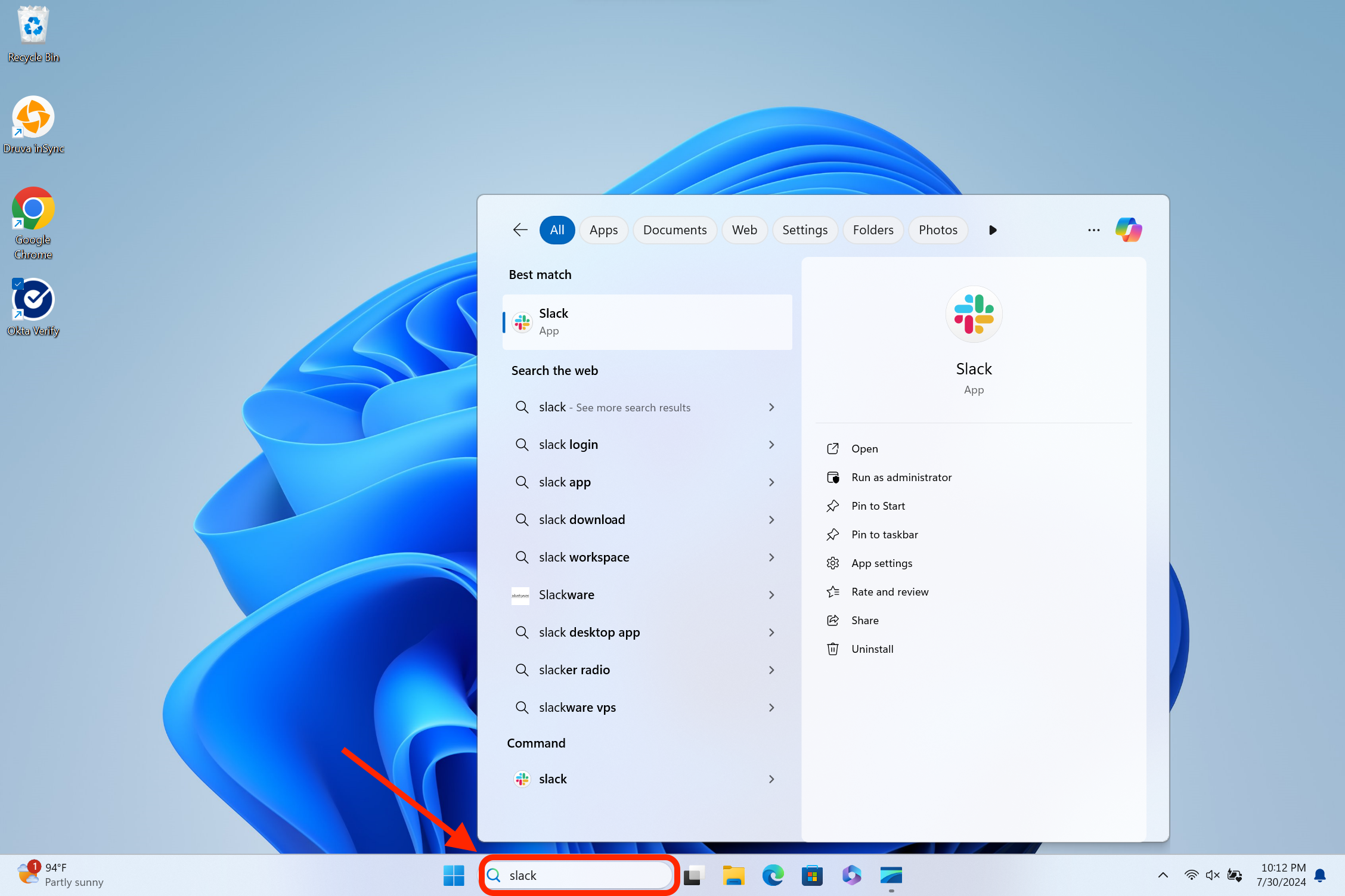
Click the Windows icon in the taskbar, search for Slack, and open the app.
Click Sign in to Slack

Enter your workspace URL
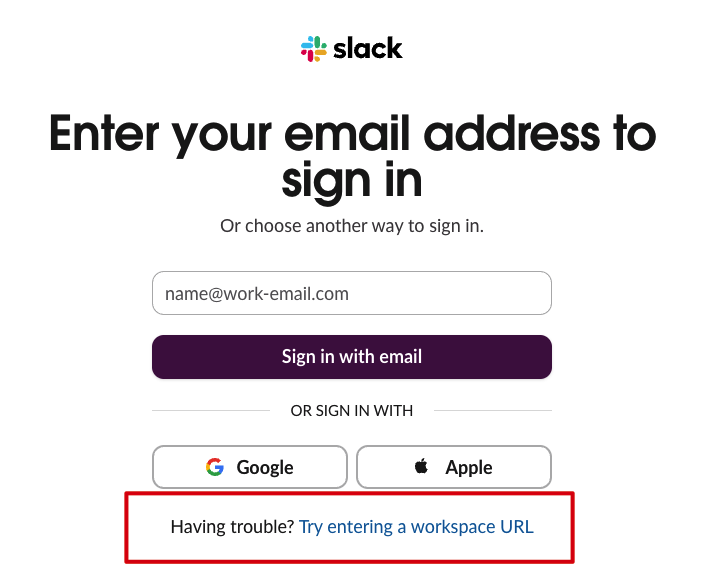
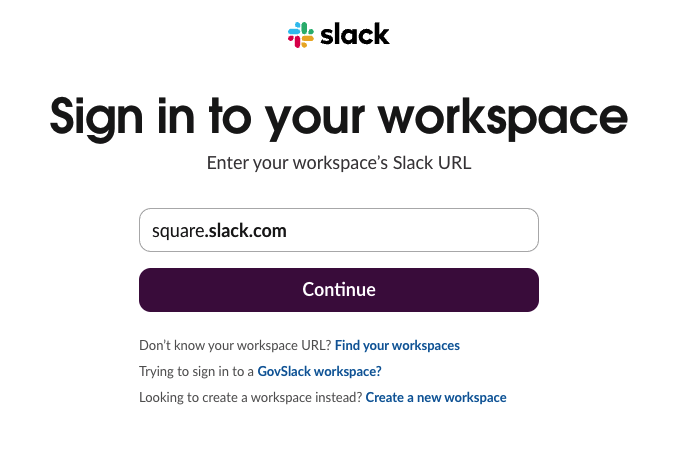
Click Having trouble? Try entering a workspace URL, then type square in the workspace URL field.
Sign in with Block SSO
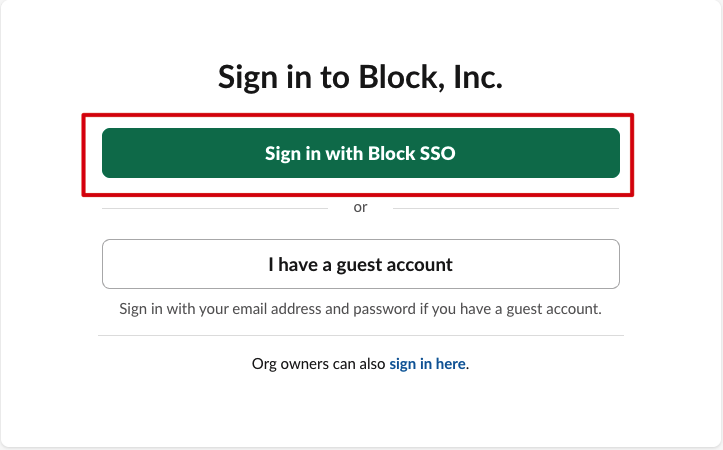
Click Sign in with Block SSO.
Sign in with Okta
This will now go through Okta to sign in.
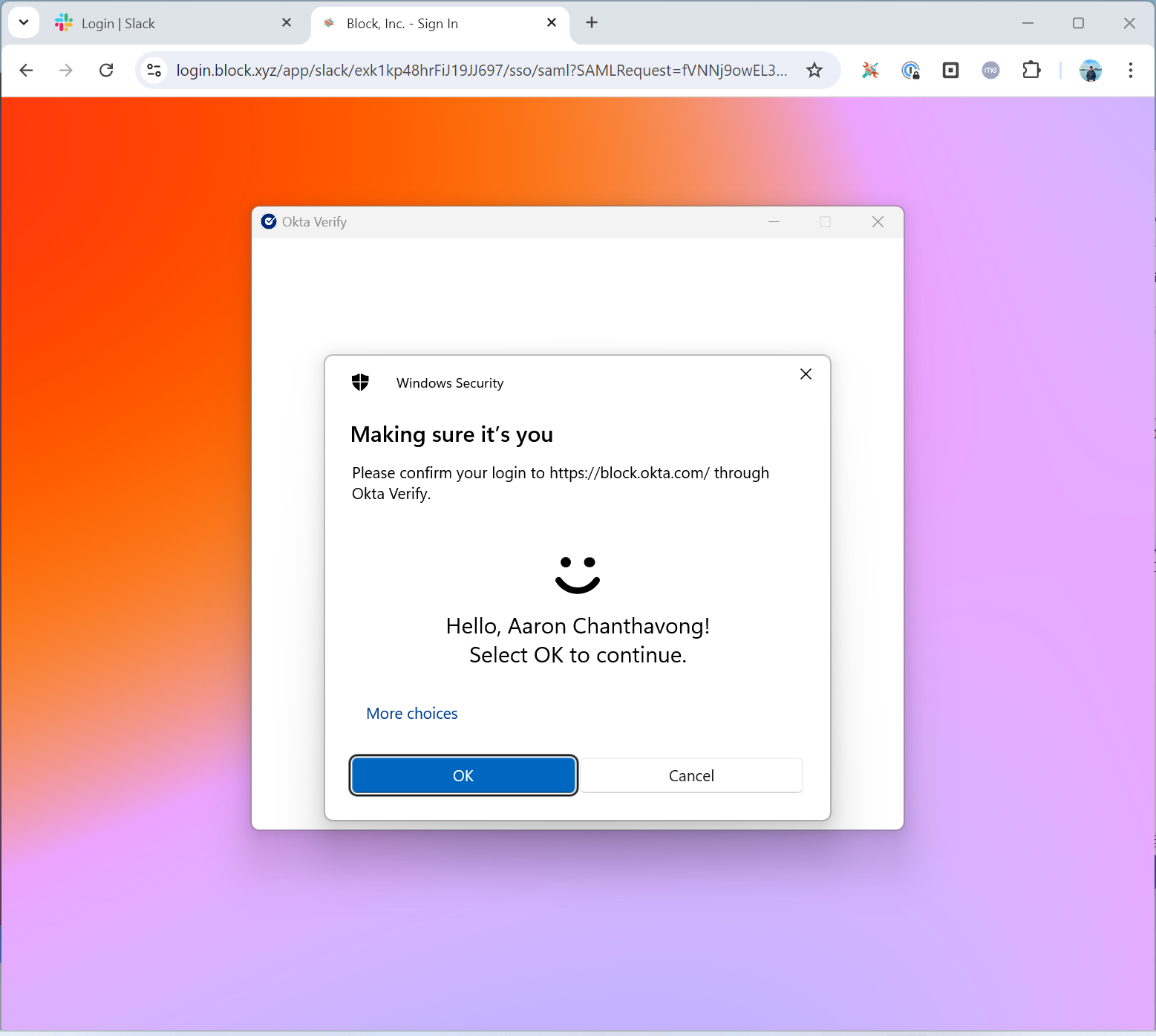
Choose your workspace
Select the Block workspace
You'll see a list of available workspaces. Select Block — Slack now merges all workspaces into a single interface, so you don't need to add any others.
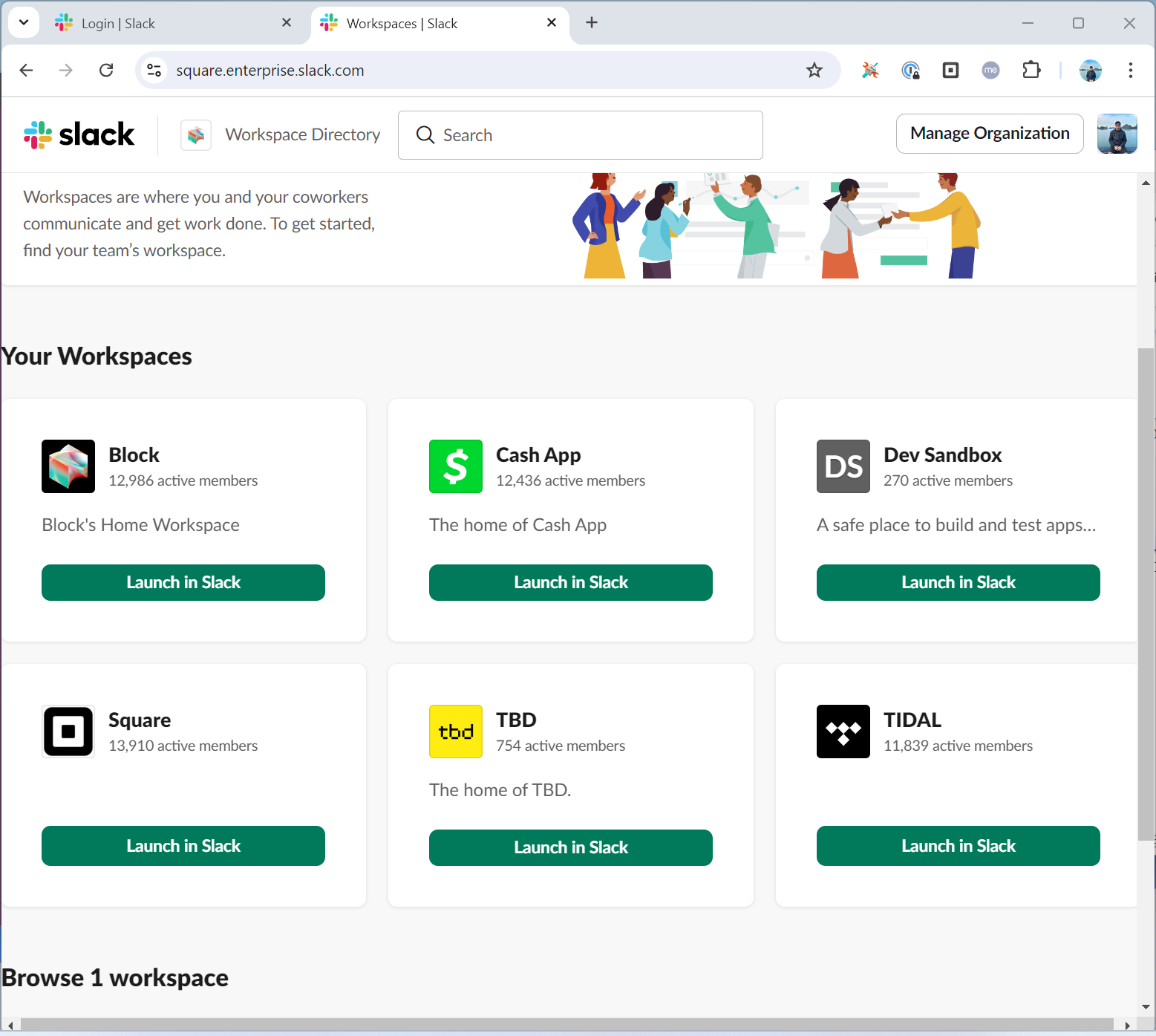
Launch in Slack
Click Launch in Slack for your chosen workspace. Slack will open with the default channels.
You're on Slack!
If it's your first day, consider messaging your lead to let them know you're online.
Need help?
Contact mission-control@squareup.com