Open and sign in to Buzz
After you finish setting up your Mac, go to go/Notion and search for Set Up Buzz for instructions on requesting access.
In Finder, open the Applications folder and double-click Buzz.
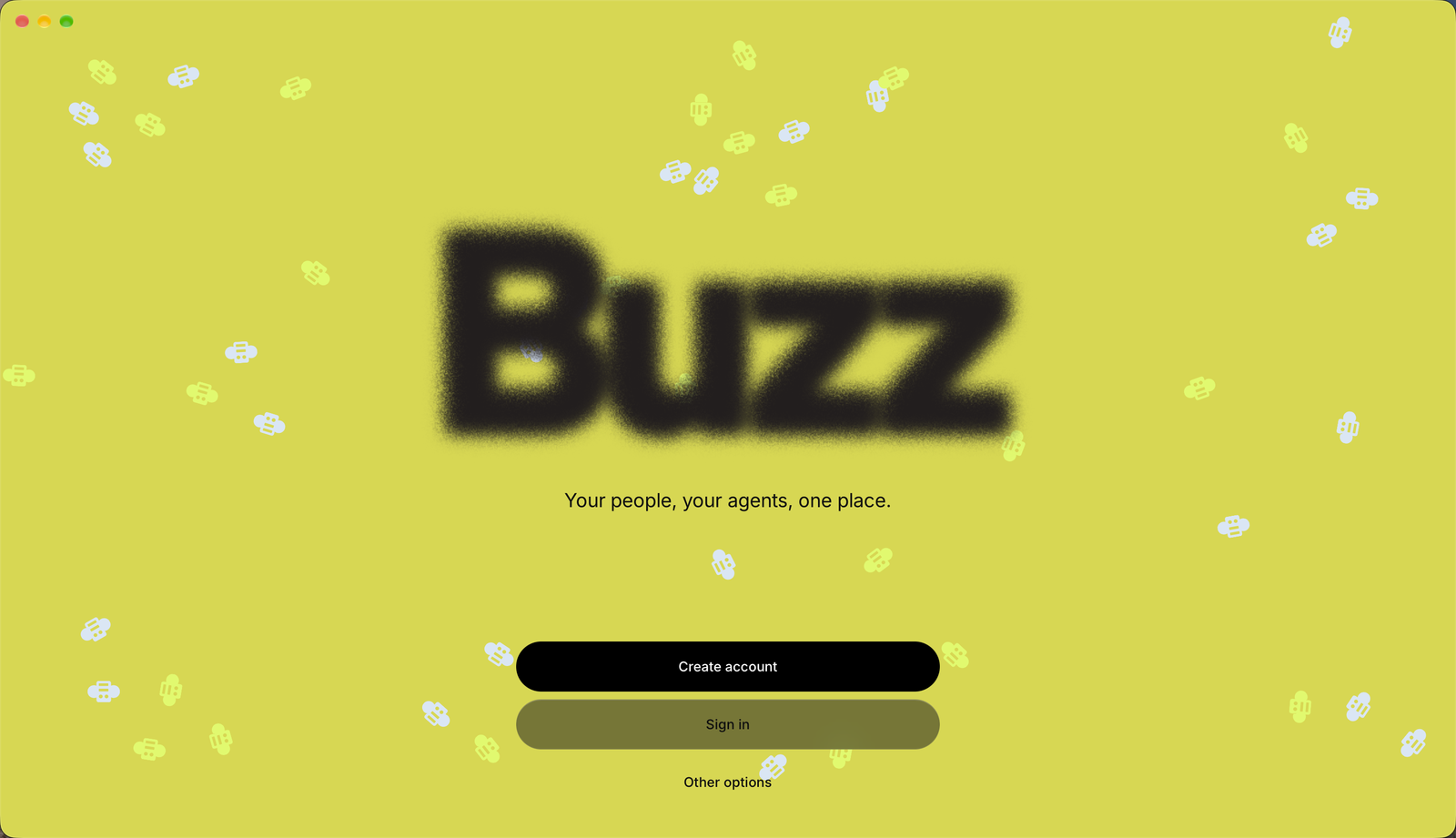
On the Buzz welcome screen, it’s below Create account. The Okta sign-in page opens in your browser.
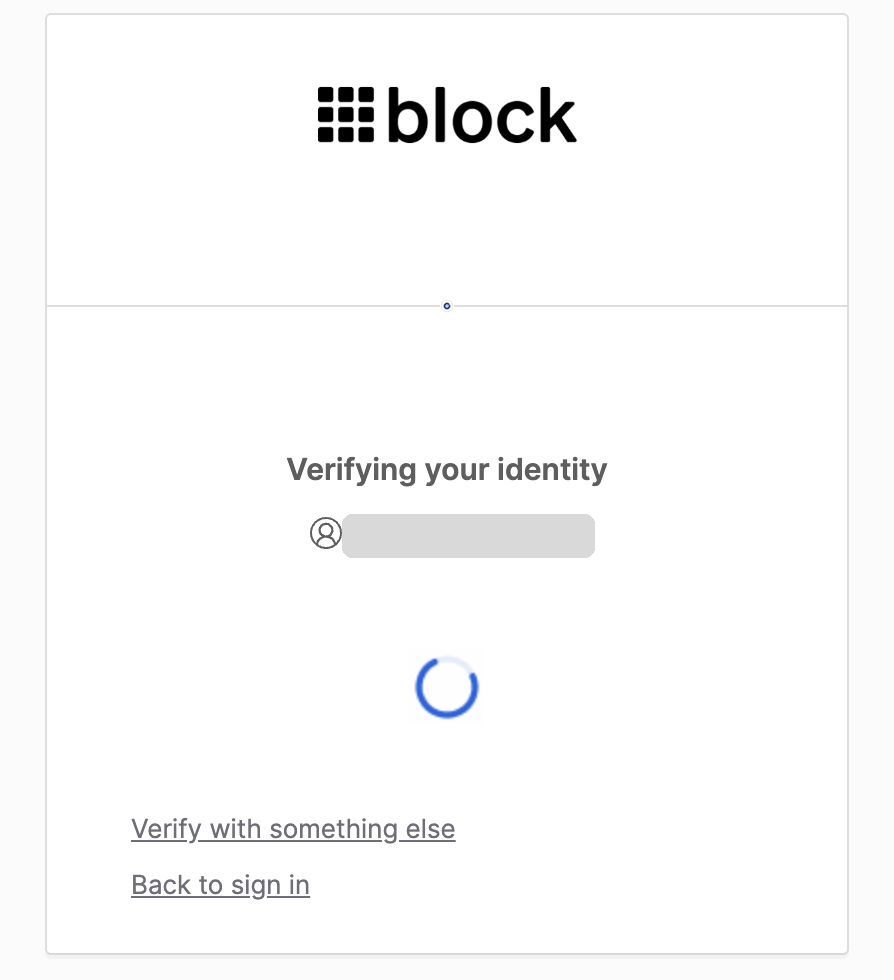
In the browser window that opens, follow the Okta prompts to sign in with your Block account.
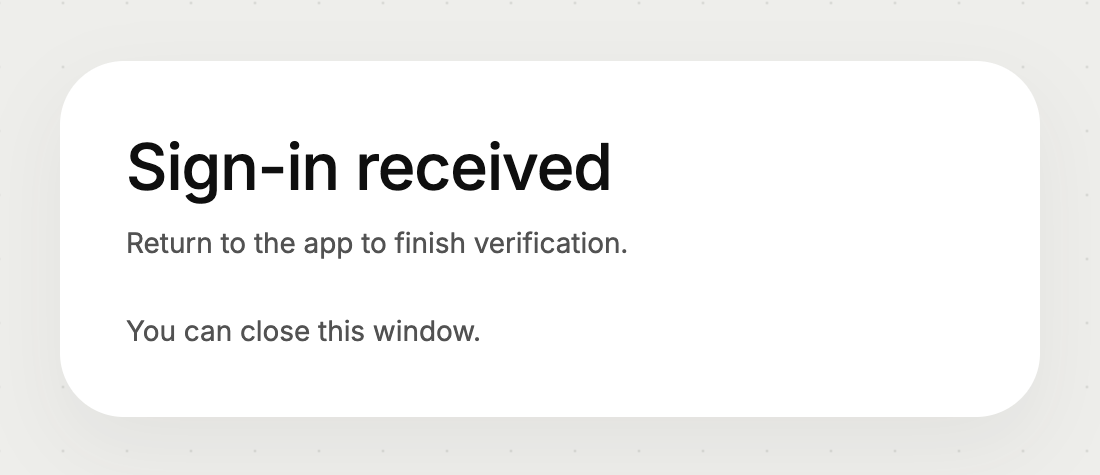
When your browser says Sign-in received, close that window and return to the Buzz app to finish verification.
Give Buzz a few minutes to open the Block community. Once it opens, press Command+K to search for a teammate or channel.
Something went wrong?
I can’t find Buzz on my Mac
Buzz comes installed on Block Macs. If it’s missing from Applications, contact mission-control@squareup.com.
The Block community didn’t open
Check that Cloudflare One (WARP) is connected. If the community still doesn’t open, type go/itkb in your work browser and search for Set Up Buzz for the steps to join manually.