Set Chrome as your default browser
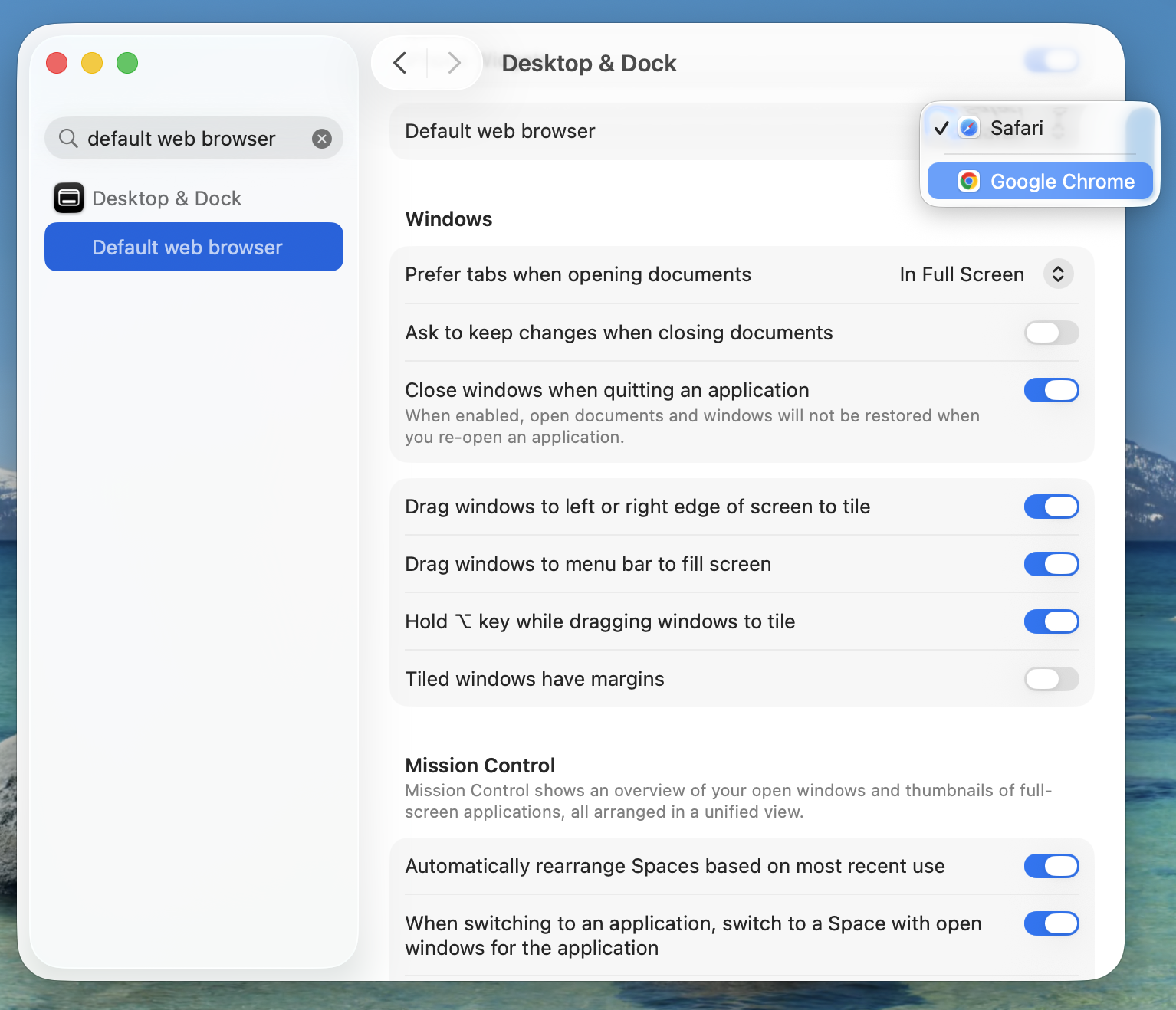
Signing in to Okta FastPass will open your web browser, so first make sure Google Chrome is set as your default.
Click the Apple menu in the top-left corner of your screen, then select System Settings.
Type Default web browser in the search bar and select the option that appears. Change it to Google Chrome.
Set up Okta FastPass
Okta FastPass provides quick, secure sign-in and helps protect you from phishing. Let's set it up before configuring Google Chrome.
Do not install it from the App Store. Okta Verify must be installed through the Managed Software Center. Go back to Software Installation if you haven't completed that step.
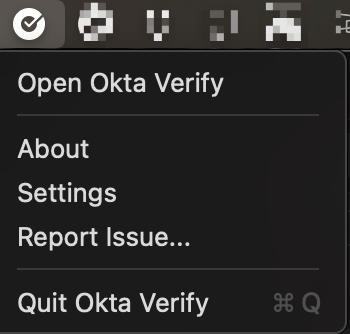
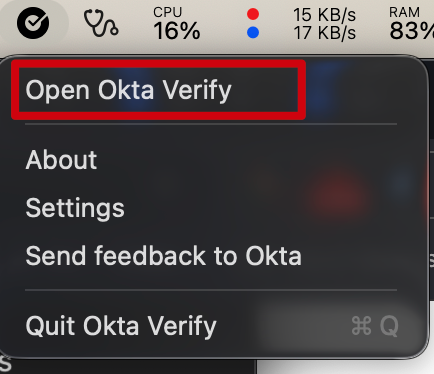
Click the Okta Verify icon in the menu bar at the top-right of your screen, then click Open Okta Verify.

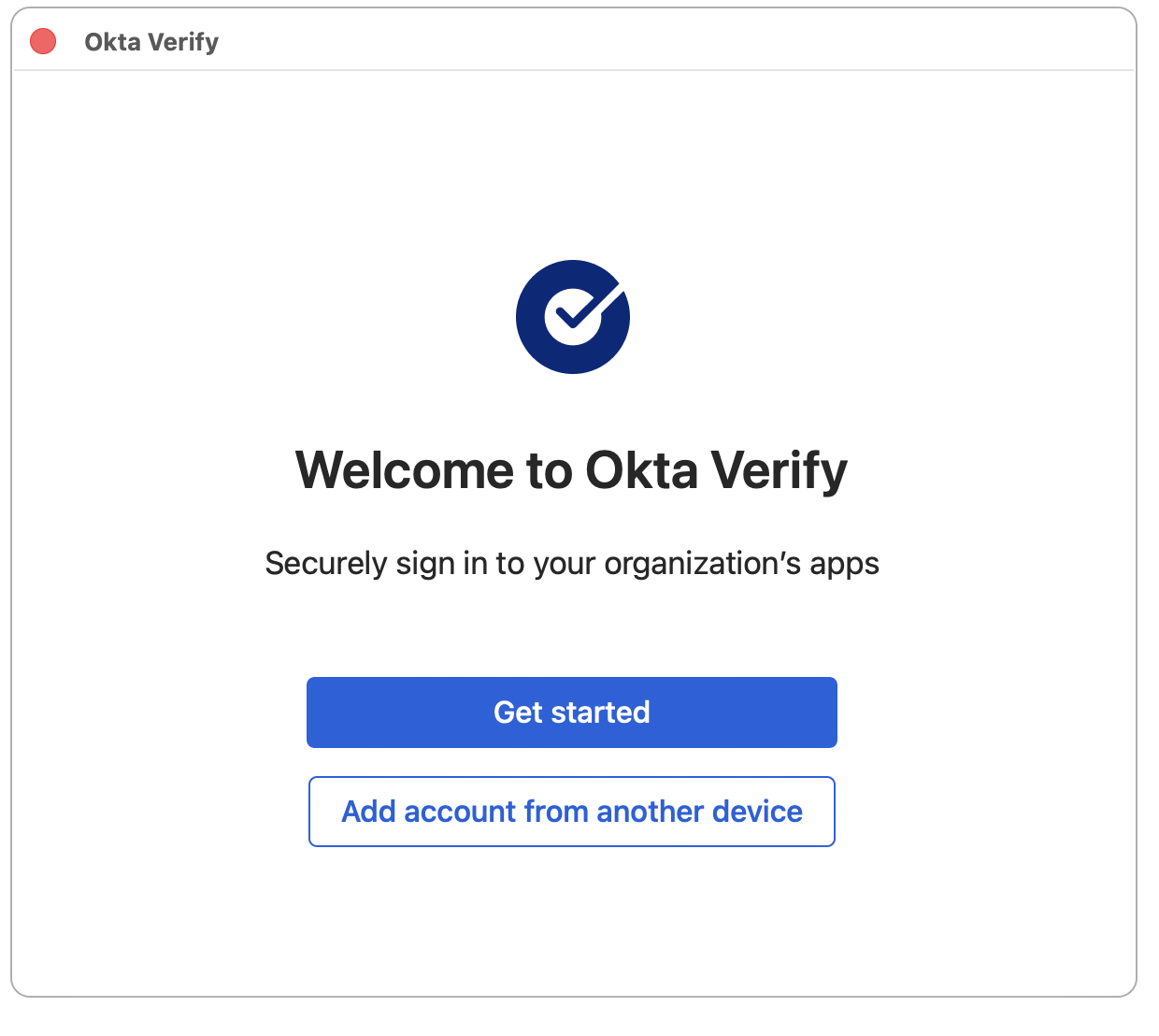
From the Okta Verify welcome screen, add your account using the option that matches your setup — expand the one that applies to you below.
🔑 I have a YubiKey
Click Get started (or Sign In on some versions) to add your account using your Okta credentials.
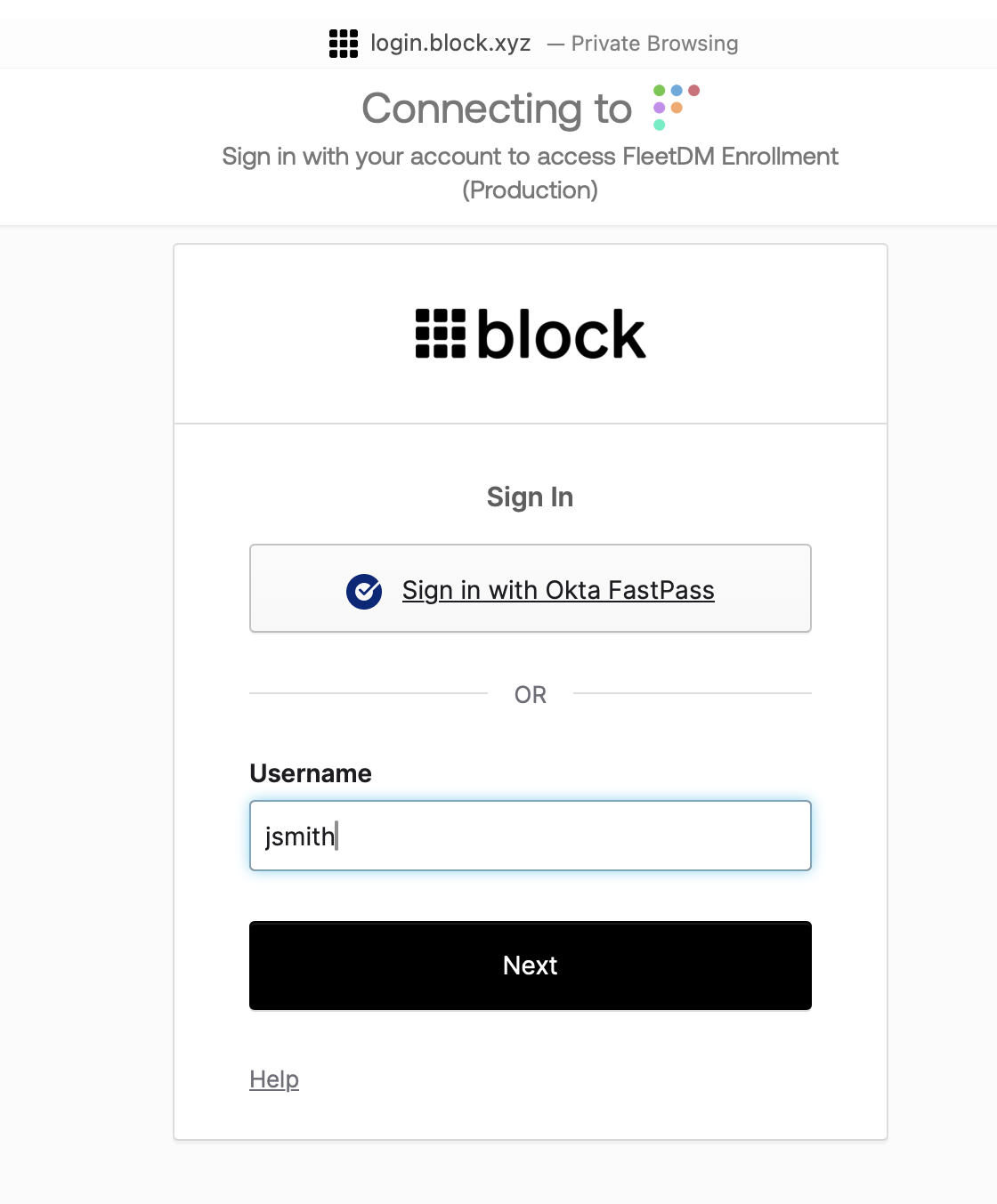
Enter login.block.xyz as your organization's sign-in URL, then click Next.
Enter your username and password, then click Sign In.
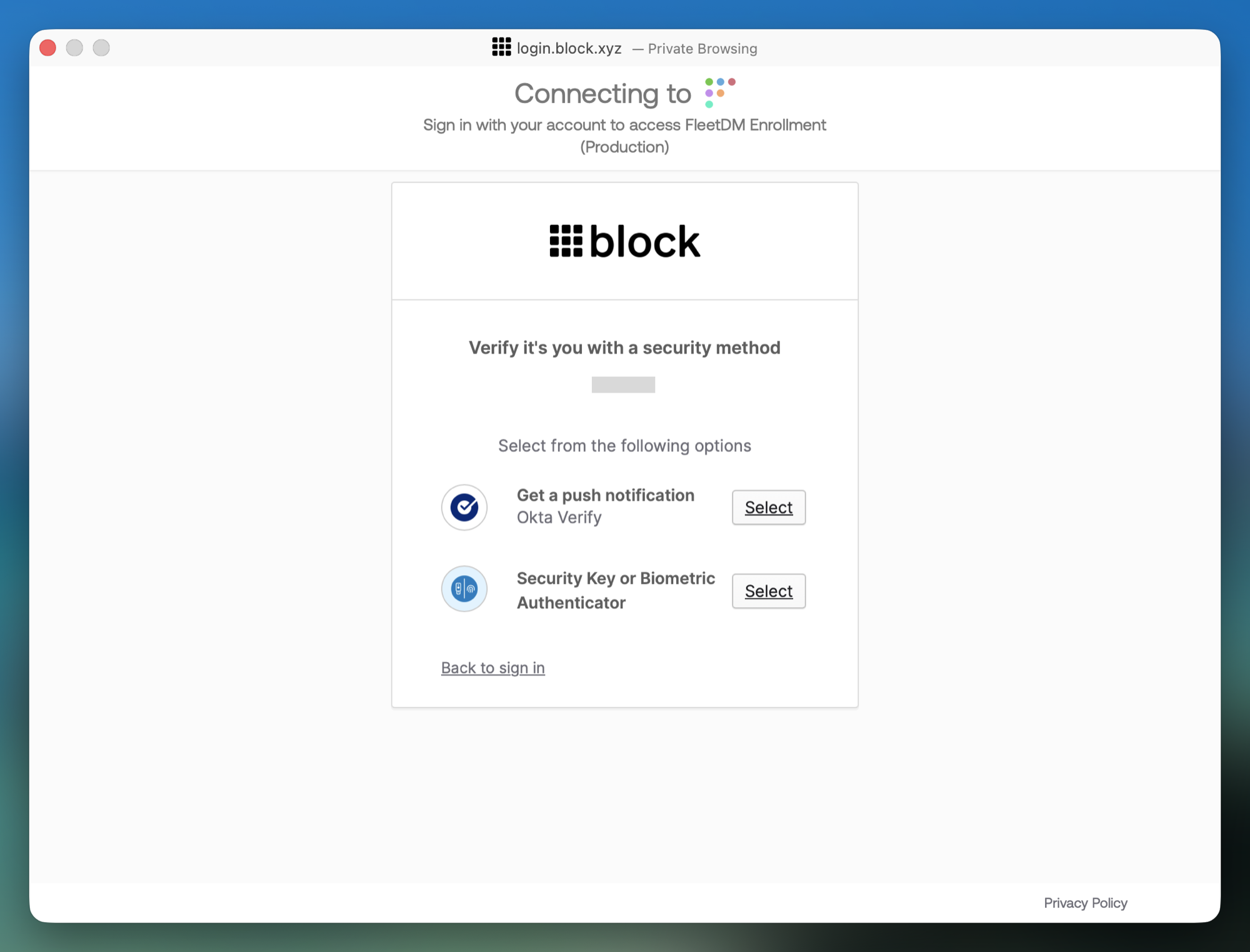
When asked to verify it's you, choose Security Key or Biometric Authenticator and click Select.
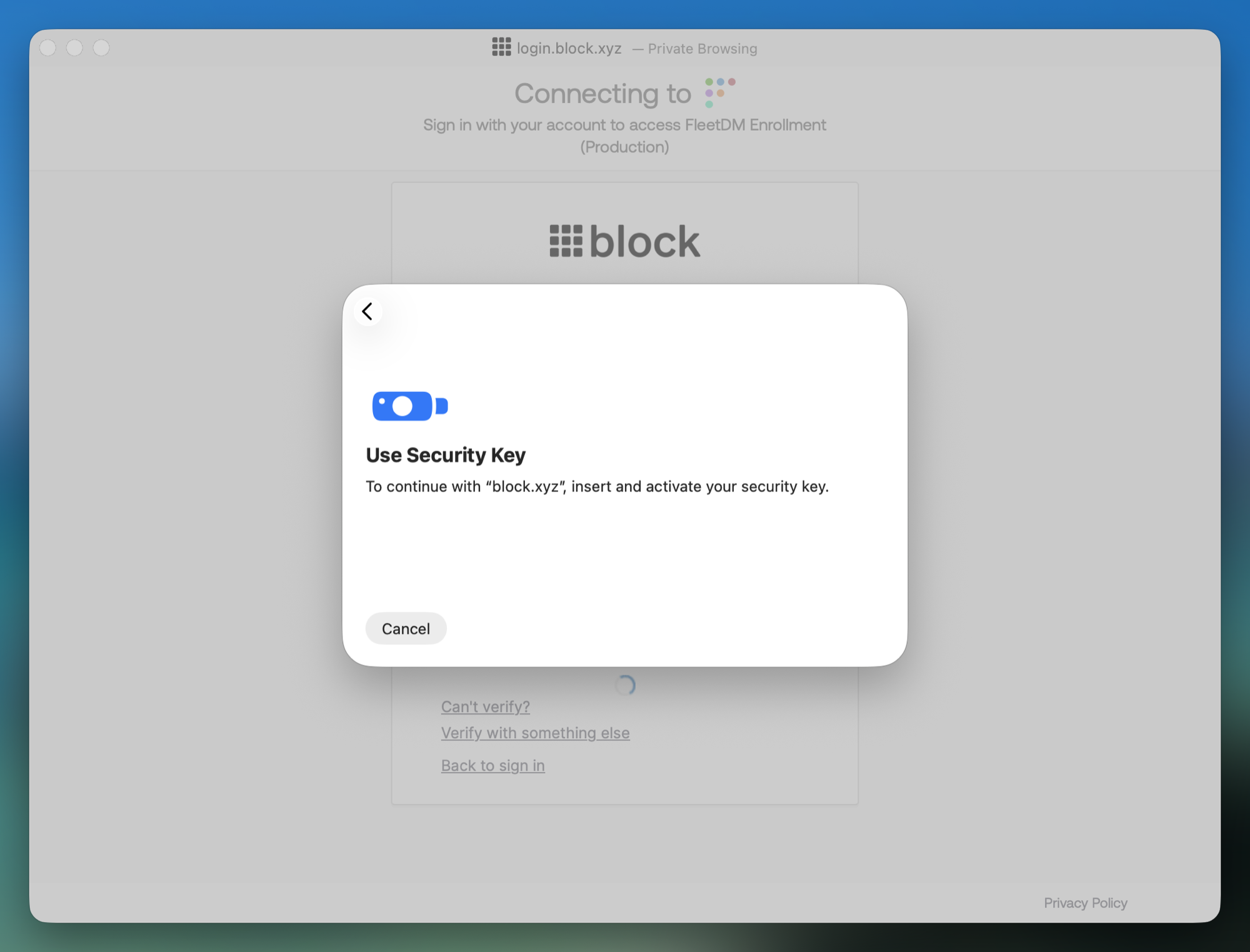
When prompted for additional verification, insert your YubiKey and tap the metal contact to authenticate.
📱 I have Okta Verify on my phone
If you already use Okta Verify on your mobile phone, you can import your account to your MacBook over Bluetooth. Make sure Bluetooth is enabled on both devices.
Open Okta Verify, tap your Block account, then tap Export account and follow the instructions. Tap Allow to approve the Bluetooth export — a QR code and an alphanumeric code will appear.
On the Okta Verify welcome screen, click Import account, then follow the prompts.
Click Continue to allow the Bluetooth import. If asked to enable Bluetooth, click OK, then Got it.
Set up the account using the alphanumeric code shown on your phone. When it succeeds, a 6-digit PIN appears on your Mac.
Enter that 6-digit PIN into Okta Verify on your phone. You'll see a confirmation message on your Mac once your account has been added.
Only pair with codes you generated yourself during this setup.
💻 I have Okta Verify on my old laptop
If you already use Okta Verify on another Mac or Windows device, you can import your account to your new MacBook over Bluetooth. Make sure Bluetooth is enabled on both devices.
Click the Okta Verify icon in the menu bar (Mac) or system tray (Windows), click Open Okta Verify, and select your account.
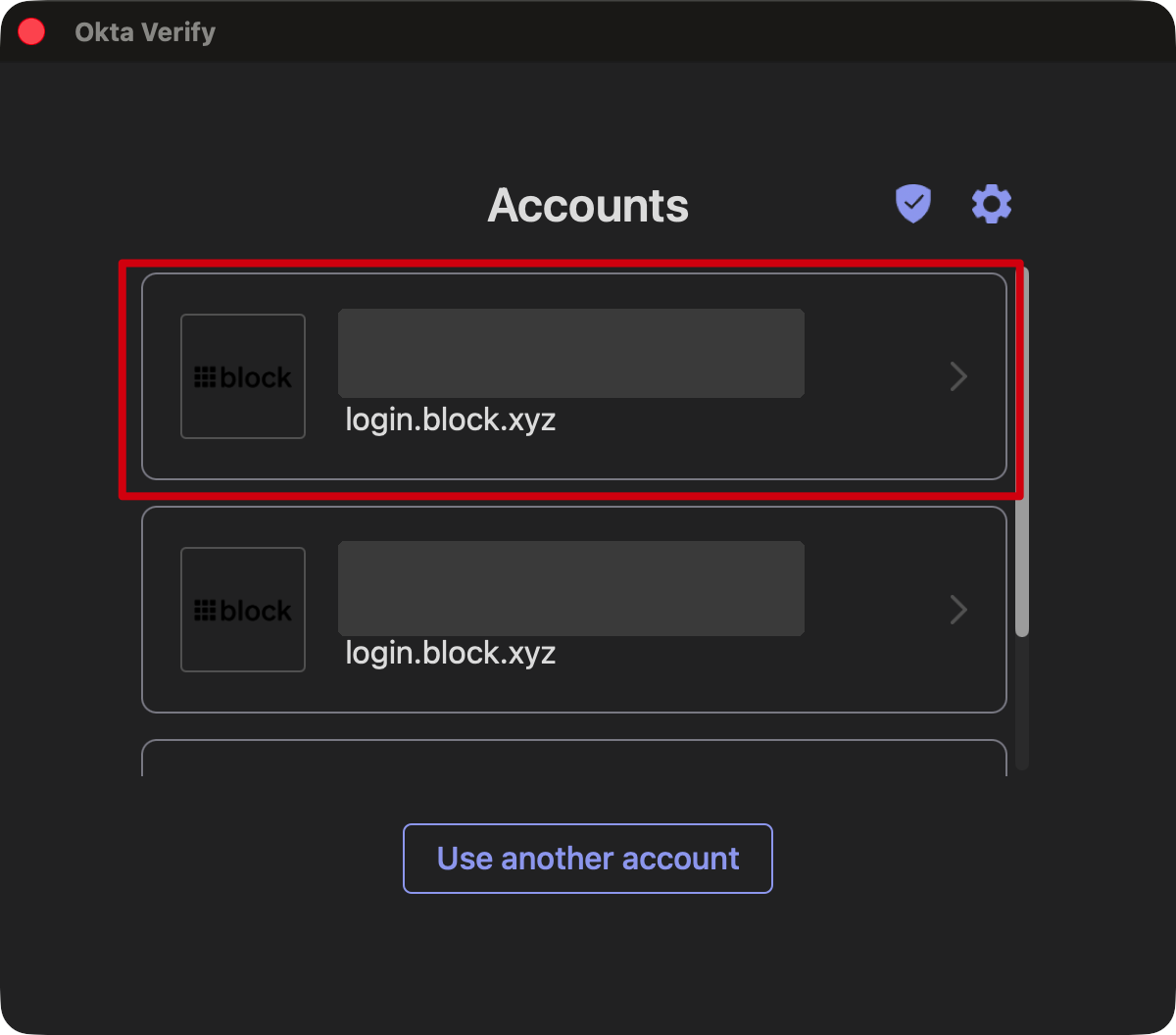
Click Export account, then authenticate with Touch ID, Windows Hello, or your password when prompted.
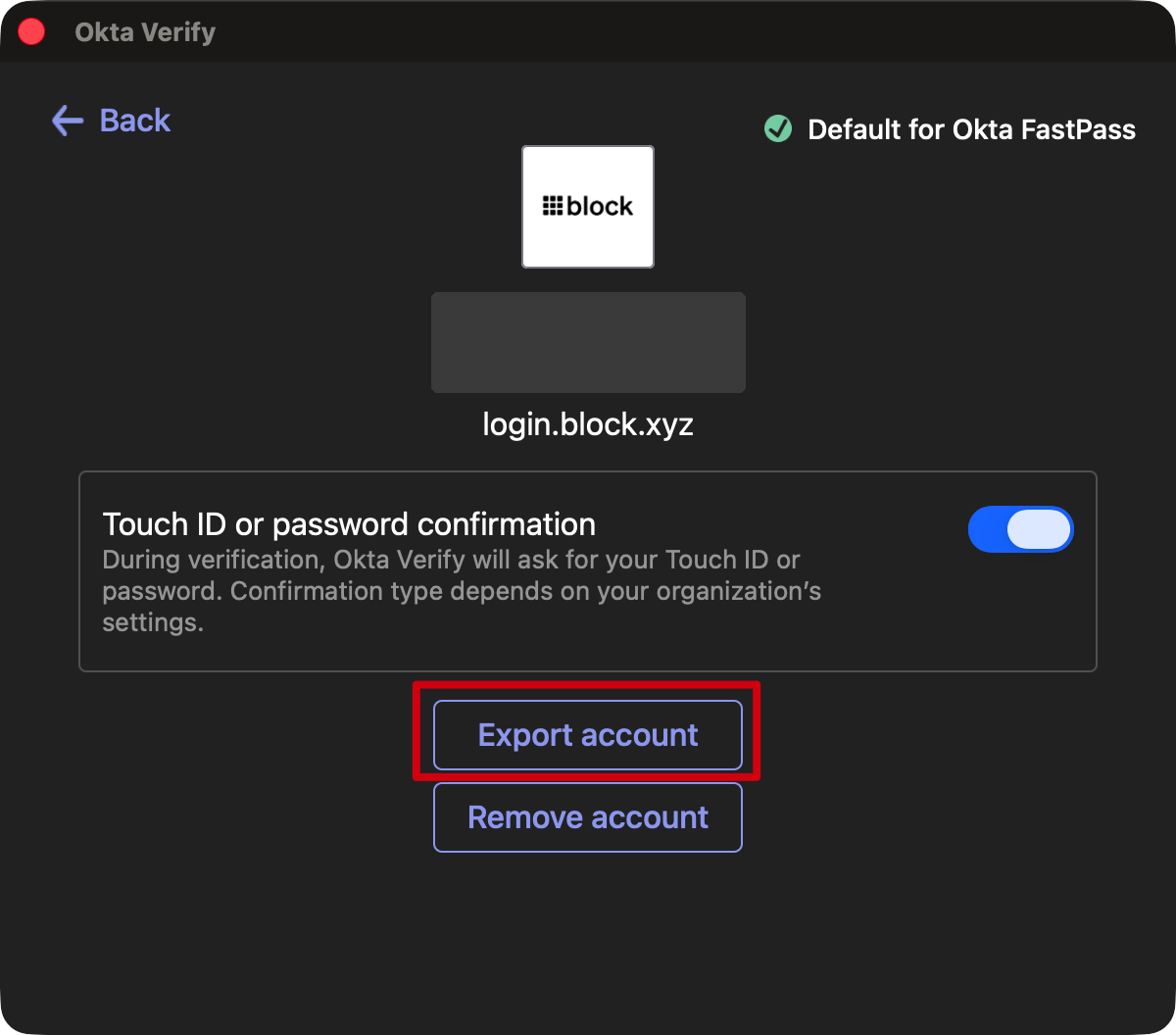
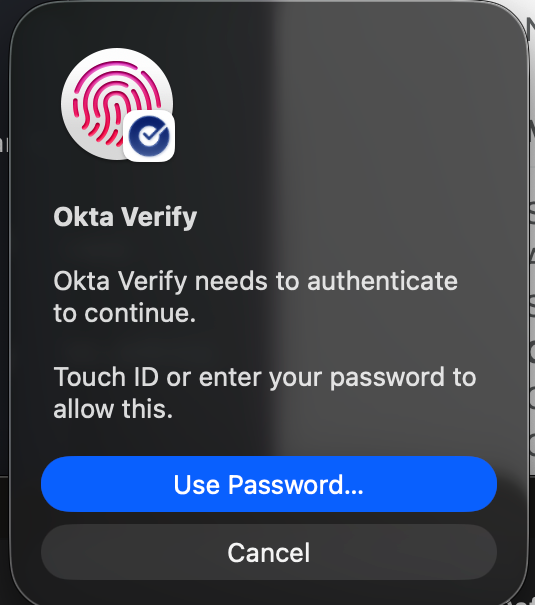
Click Allow to approve the Bluetooth export — a QR code and an alphanumeric code will appear.
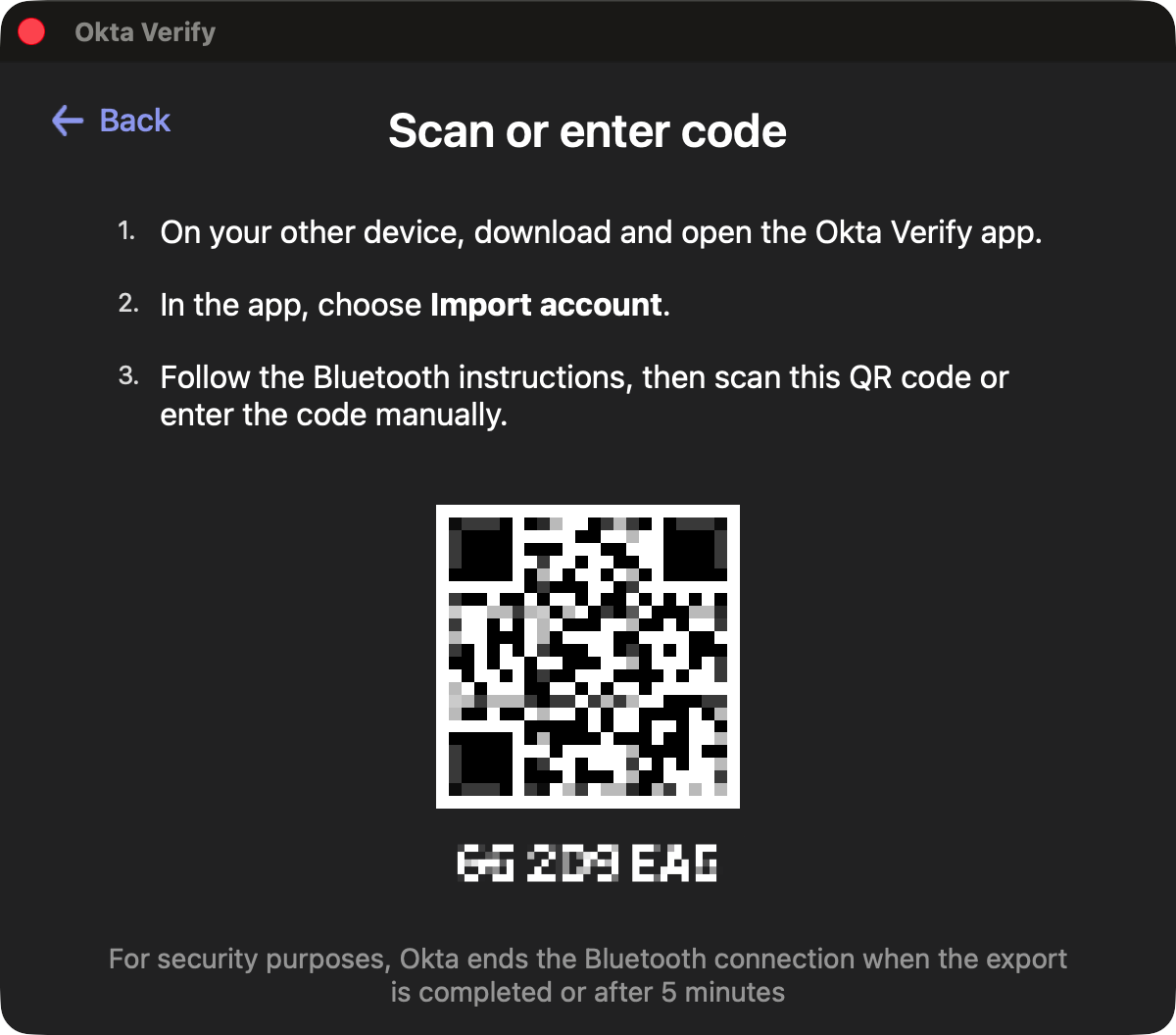
On the Okta Verify welcome screen, click Import account, then follow the prompts.
Click Continue to allow the Bluetooth import. If asked to enable Bluetooth, click OK, then Got it.
Set up the account using the alphanumeric code shown on your old device. When it succeeds, a 6-digit PIN appears on your new MacBook.
Enter that 6-digit PIN into Okta Verify on your old device. You'll see a confirmation message on your new Mac once your account has been added.
Only pair with codes you generated yourself during this setup.
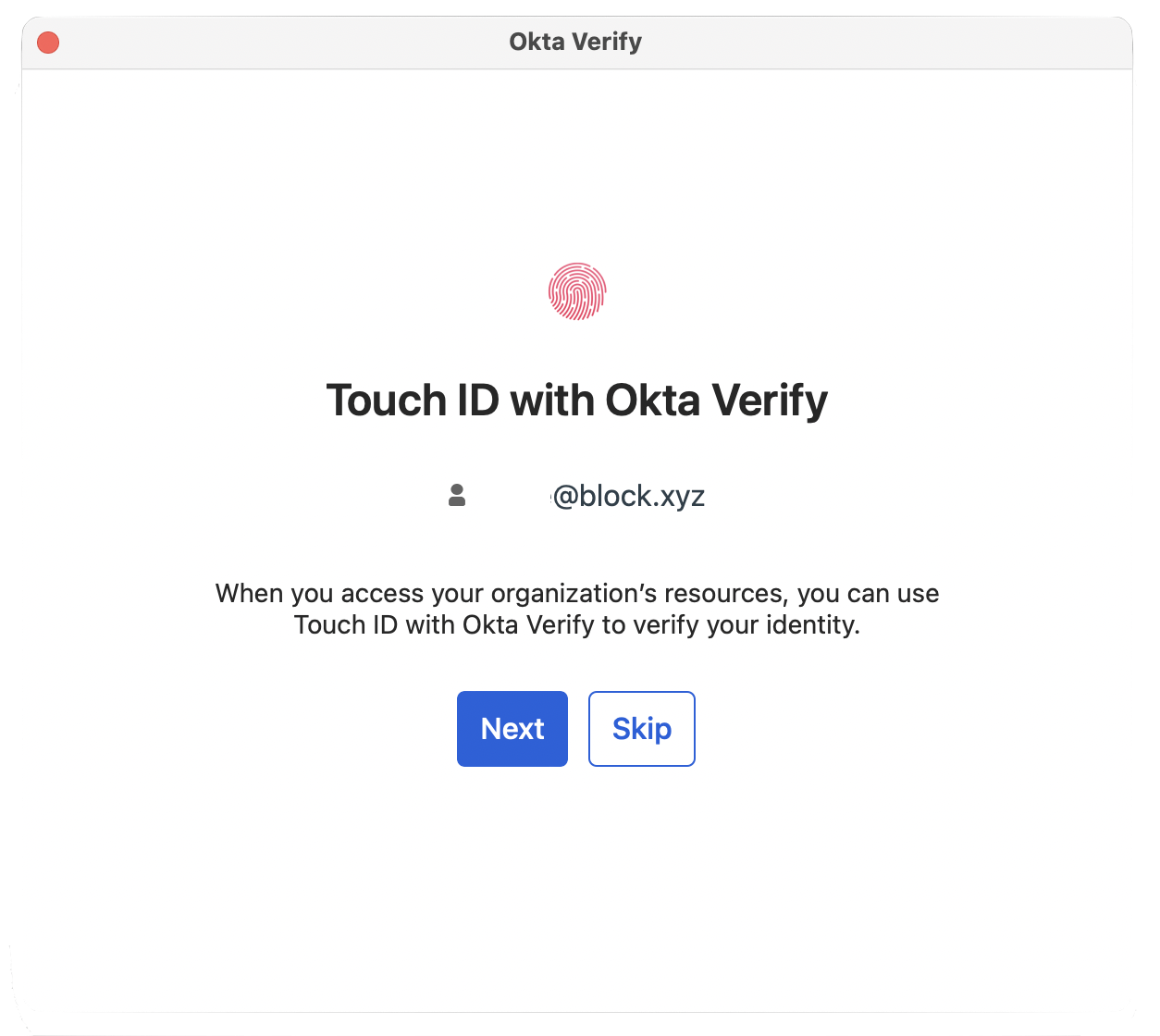
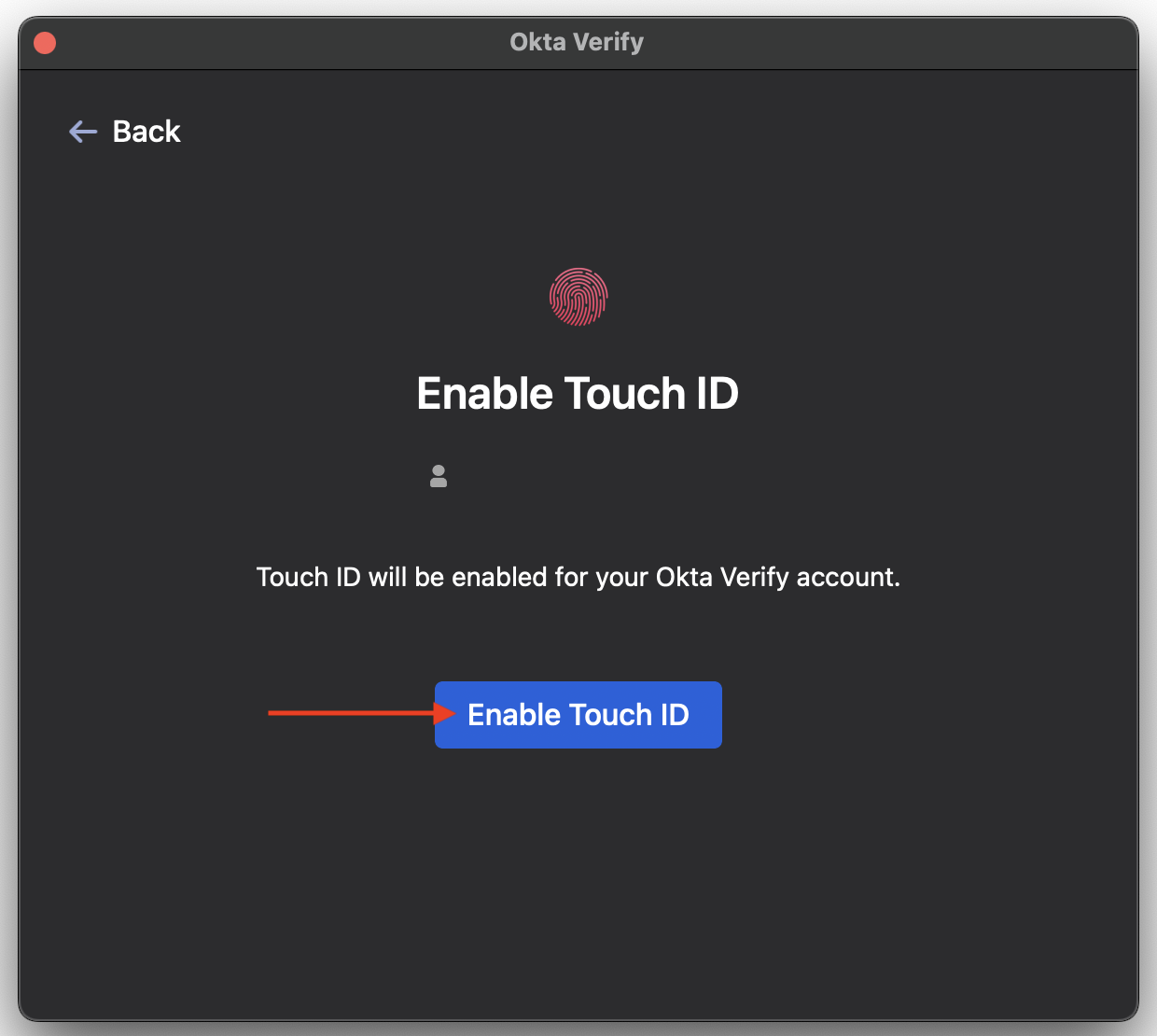
When prompted, click Enable Touch ID and authenticate with your fingerprint. Touch ID is the preferred method for Okta FastPass — if you skip it, you'll be prompted for your password each time instead.
You're all set up. Next we'll configure Google Chrome.