This update can take a while
macOS updates often require a restart and may take 15–45 minutes. Run this when you have some downtime — over lunch, at the end of the day, or between meetings. If your macOS is out of date, you won't be able to access some Block internal tools.
macOS updates often require a restart and may take 15–45 minutes. Run this when you have some downtime — over lunch, at the end of the day, or between meetings. If your macOS is out of date, you won't be able to access some Block internal tools.
Update your Mac
Open Software Update
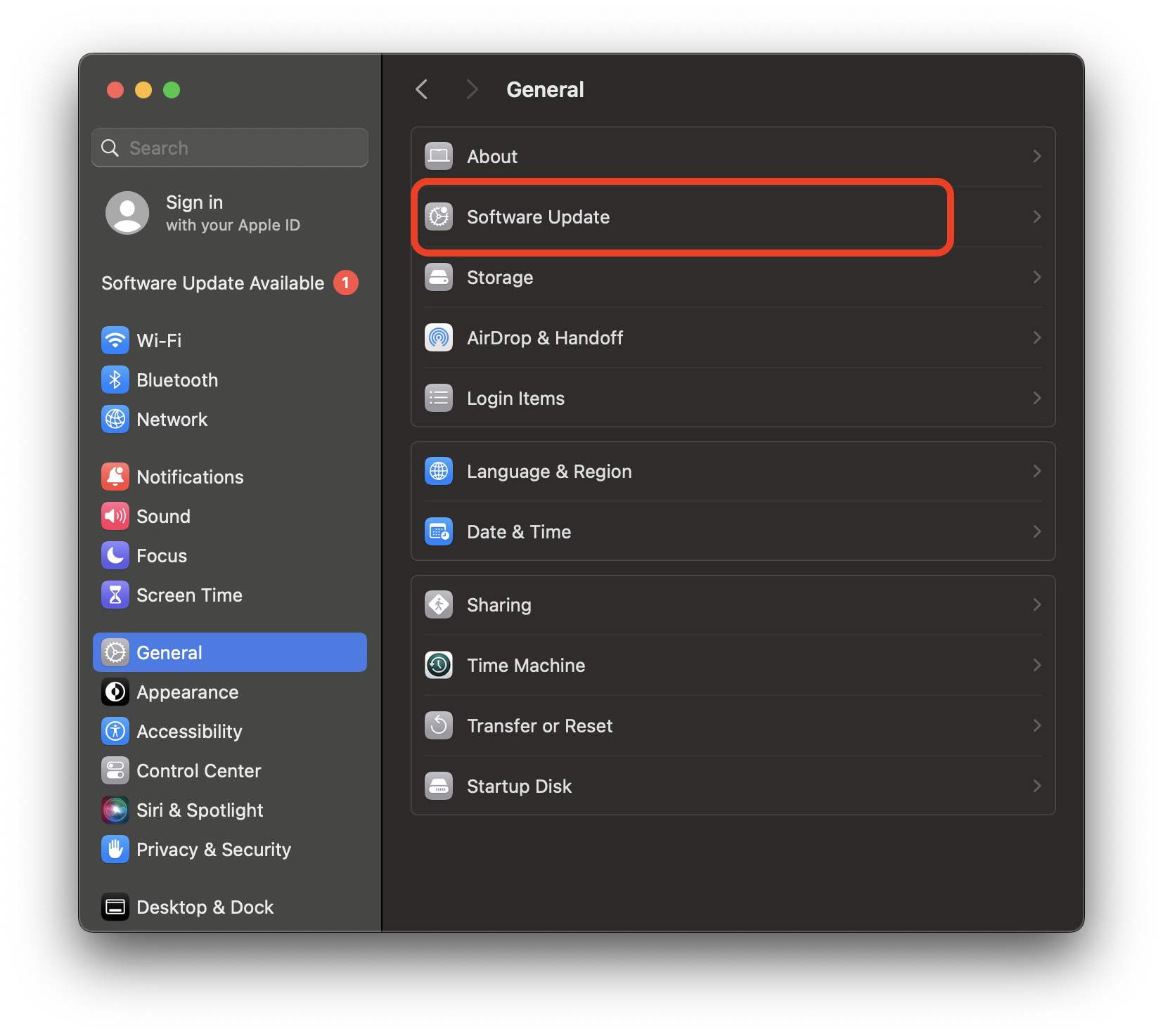
Click the Apple menu in the top-left corner of your screen, then go to System Settings → General → Software Update.
Install available updates
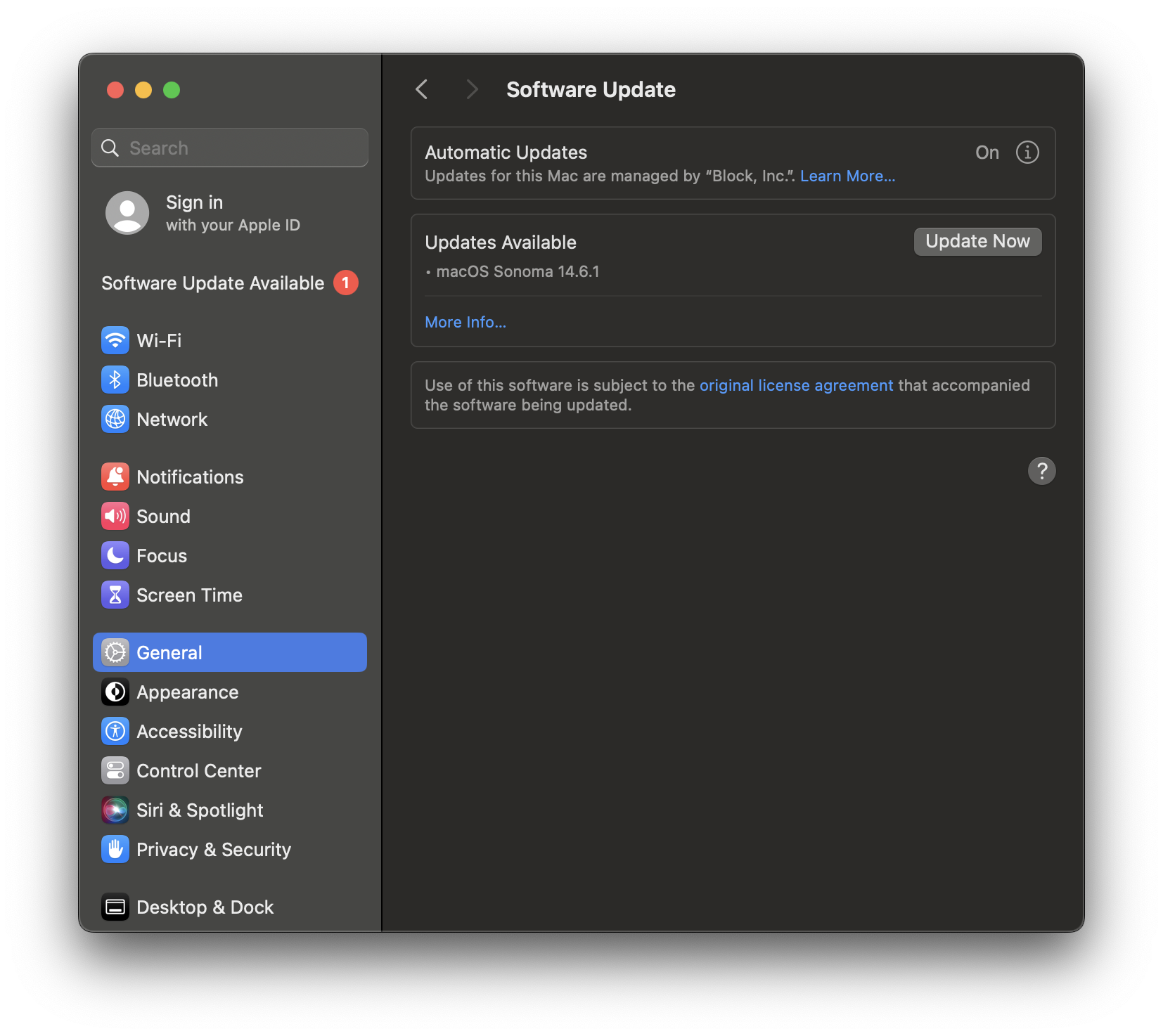
If new software is found, click Update Now, Upgrade Now, or Restart Now — the button name varies depending on the update. You'll be asked to enter your Mac/Laptop Password.
Wait for the update to complete
Your Mac may restart one or more times during the update. Once it's finished, log back in and you're all set.
You're up to date!
Your Mac is now running the latest macOS version.
Need help?
Contact mission-control@squareup.com